August 10, 2011

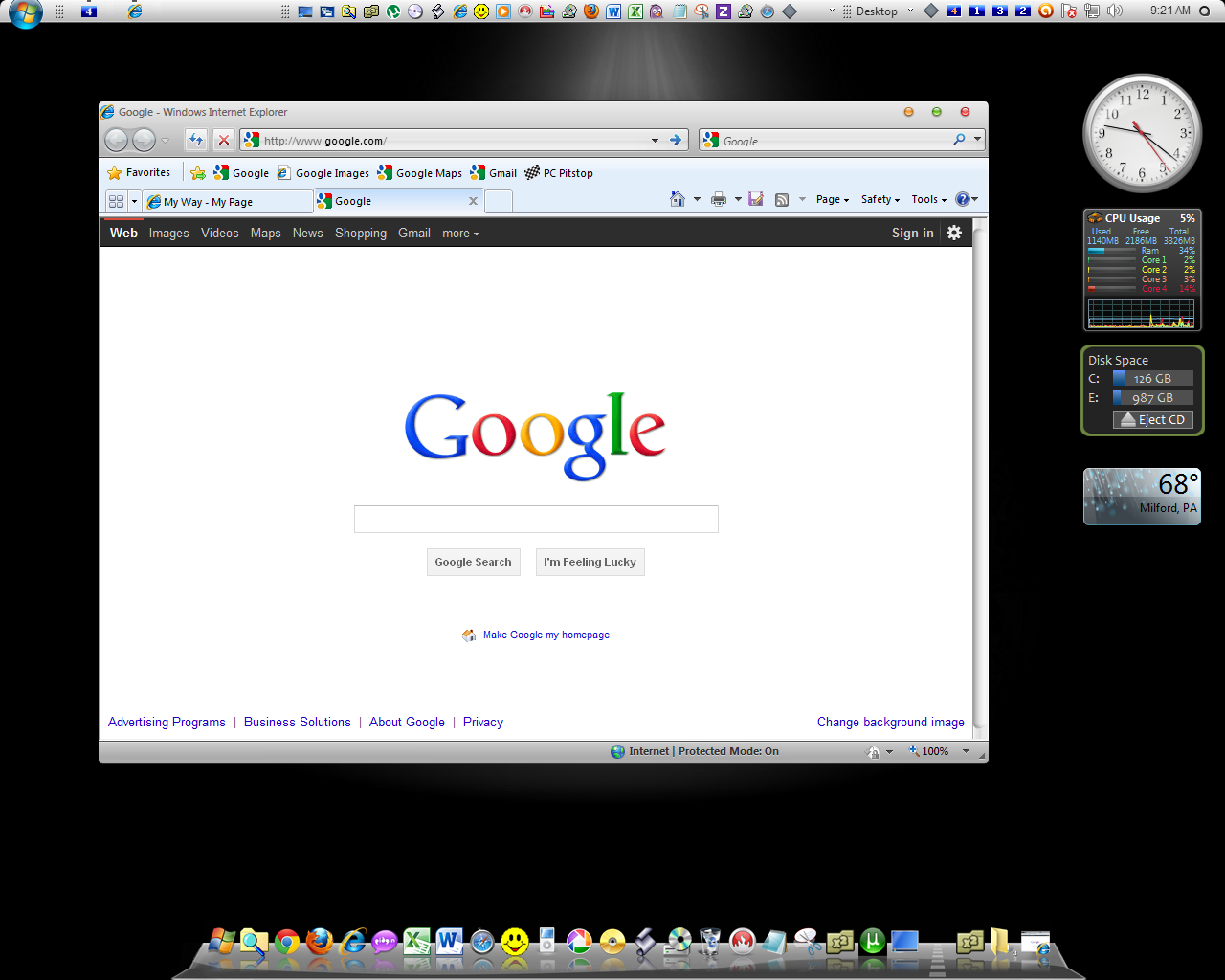
August Desktop - Tribute to Apple


Apple replaces Exxon as No. 1 in market value can you believe. You have to hand it to Apple for its recent success and cannot fault their approach. They say imitation is the sincerest form of flattery. So for August we return to a Leopard OSX Theme called NFR Pack. Also used is the Nexus launcher toolbar. Below are the screen shots and a link where to get the NFR OSX Theme.


You can download the NFR OSX theme here:
http://browse.deviantart.com/customization/skins/windows7/visualstyle/?order=9&offset=24#/d2wzhss

Other Win7 OSX Themes are here:
http://browse.deviantart.com/customization/skins/windows7/visualstyle/?order=9


March 19, 2011

IE9 Seeks to Please

I downloaded the just announced Internet Explorer ver 9 and it runs fast. I was surprised at how bare the browser was after install. I added back the Favorites Bar. You can also add back the menus if you want as well by right clicking on the toolbar. Below are some screenshots and where to download it. Also below is a review article from ComputerWorld.


Below showing the Favorites Bar


The options box is similar to the old.


You can get Internet Explorer 9 below-
http://windows.microsoft.com/en-US/internet-explorer/downloads/ie


Internet Explorer 9 Speeds Past the Competition

The latest version of Microsoft's browser is fast, lean and means business.

By Preston Gralla,March 16, 2011 02:30 PM ET

Computerworld - Throw away what you think you know about Internet Explorer -- because the just-released IE9 will turn it all on its ear. Think IE is sluggish? Think again, because according to SunSpider tests, it rivals or beats the speed demons Chrome and Opera. Believe that IE sports a tired-looking interface? No longer --- it now has the same type of stripped-down look that Chrome originated, and that the latest version of Firefox uses as well.

IE9 (available only for Vista and Windows 7) also introduces other goodies, such as HTML5 support, Windows 7 integration, a double-duty address bar and more. It's clearly Microsoft's best shot at stopping the erosion of its market share by rivals Firefox and Chrome.

Moving to a clean interface

Microsoft takes a page from Google Chrome with its design for IE9 -- it's simple and clean, putting as much focus as possible on Web content and not on the browser itself.

Internet Explorer 9

Internet Explorer 9 sports a simple, stripped-down interface.
All unneeded buttons and controls have been eliminated, and tabs are now at the top of the browser. (For a bit of simple eye candy, the top and the sides of IE9 are transparent.) The arrangement works. Web pages take center stage, with very little to distract you. There's not even a search box; as with Chrome, the address bar does double-duty as a search box.

Three small icons on the upper-right corner of the screen give you access to IE9's options: a Home button, a Favorites button for managing bookmarks, and a Tools button shaped like a gear. The Tools button leads you to most of the browser's other features and options, such as security, privacy, add-ons, customizing search and so on.


Internet Explorer 9

When you open a new tab in IE9, you get thumbnails of frequently visited pages.
There's another new feature to the IE9 interface as well. When you open a new tab, it displays thumbnails of pages you frequently visit. Rival browsers have done this for some time, but IE9 adds a new twist: At the bottom of each thumbnail is a bar that shows how frequently you visit each page. The longer the bar, the more you've visited the page. And there are some very useful other things you can do from this page as well, including reopening your last browsing session, reopening tabs you've closed during the browsing session, and getting recommendations for sites you might want to visit, based on the sites you frequently visit. You can also launch an anonymous browsing session, which IE terms "InPrivate Browsing."

IE9: The new speed demon?

Among the loudest complaints against previous versions of Internet Explorer was its lack of speed. In a world in which graphics-heavy Web pages get heavier every year, videos are becoming normal elements and Web-based apps are replacing desktop-based applications, this sluggishness could have become a fatal flaw.
Microsoft was clearly cognizant of that when it went to the drawing board for Internet Explorer 9. Its new JavaScript engine, called Chakra, uses multiple processor cores to do its work, and compiles scripts in the background on one of those cores. IE9 also uses the computer's GPU to accelerate text and graphics rendering, especially HTML5 graphics.

I ran tests on IE9 and competing browsers using the SunSpider JavaScript Benchmark. I used a Dell Dimension 9200 with a 2.4-GHz Intel Core 2 Quad processor and 2GB of RAM running Windows Vista. I ran three sets of tests on each browser and averaged the results.
IE9 beat all the others. It took an average 280 milliseconds (ms) to complete the tests, followed by Opera 11.01 at 308.8 ms, Chrome 10.0.648 at 316.7 ms, Firefox 4 Release Candidate at 319.1 ms and Safari 5.0.4 at 410.2 ms.
As a practical matter, there's not much difference in these tests between the top four performers. It's not going to be noticeable by most surfers. But in previous tests I ran, Internet Explorer 8 took between five and six times the amount of time to complete the SunSpider tests as its next-slowest rival, Firefox, making this an astonishing speed improvement. And the fact remains: On this test, Internet Explorer beat all rivals.

Internet Explorer 9
When IE9 and competing browsers were run using the SunSpider JavaScript Benchmark, IE9 proved to be the fastest. (Lower numbers are better.)
It's an open question, though, as to whether Internet Explorer's hardware-accelerated GPU handling of processing-intensive work is superior to other browsers. The upcoming Firefox 4 also uses hardware acceleration, and Microsoft and Firefox have been trading fire over which browser is superior in that respect. We'll have to wait until a set of agreed-upon benchmarks emerge for measuring that capability before judging.

Keeping up with standard

Past versions of Internet Explorer have been criticized for not adhering to Web standards, something that Microsoft has fixed in Internet Explorer 9. Microsoft now has an Internet Explorer Test Drive page to demonstrate embedded video and other features. However, the
As a practical matter, this is moot at this point, because you'll have to search long and hard to find Web pages that use the
To test overall HTML5 compatibility, I ran IE9 and other browsers through the HTML5 test page. IE9 scored at the bottom, with 130 out of 400, while Firefox 4 Release Candidate scored 240, Opera scored a 234, Chrome rated 288, and Safari came in at 228. Of course, given how little HTML5 is used at this point, it's not clear how relevant these numbers are at the moment. But Microsoft needs to do some work to prepare Internet Explorer for HTML5 when it becomes widely used. At this point, IE is the least compliant browser, at least according to the HTML test page.

IE9 came close to acing the Acid 3 Test, which tests the degree to which a browser follows a number of Web standards, especially JavaScript and the Document Object Model (DOM). IE9 scored a 95 on the Acid Test and rendered the page perfectly except for a minor error, getting one color wrong. This is a dramatic improvement over IE8, which in my tests had scored only a 20. Chrome scored a 100, and while it didn't render the page properly on one of my machines, did a perfect job on several others. Firefox 4 Release Candidate scored a 97 and, as with Internet Explorer 9, rendered the page perfectly except for a minor error, getting one color wrong. Opera and Safari both scored a perfect 100 and rendered the page perfectly.

As for normal Web browsing, IE9 displayed nearly every page I visited properly, with a few exceptions. On my iGoogle home page, it would not render the Web-based version of Google Talk. And on the Computerworld blogs, it didn't show any of the comments that readers made. I was able to solve the problem with Computerworld's blogs by clicking on IE9's Compatibility View button, which displays the page as thought it were being rendered by Internet Explorer 8. In subsequent visits to that page, IE9 remembered to display it using the earlier version of the browser. However, Compatibility View didn't solve the problem with rendering Google Talk.

A better address bar

With IE9, the address bar now does double-duty as both an address bar and a search box. (To highlight this capability, Microsoft refers to it as One Box.) As you type your search, the browser looks at your History, Favorites and Feeds, and displays matches. In that way, you can more quickly find a site or do a search by selecting a choice and pressing Enter. You can, of course, also type in your entire search term and press Enter to search the Web using your default search engine.
(On my Vista test machines, the address bar didn't launch searches when I typed in text. To fix the problem, I clicked the tools icon in the upper-right part of the screen and selected Internet Options --> General, clicked Settings in the Search section, checked the box next to "Search in the address bar," then clicked OK. On my other test machine, I didn't need to do this; however, this may have been an anomaly.)

You can also have your keystrokes sent to your search provider (such as Bing or Google), so that the provider can see what you're typing and suggest possible matches. IE9 turns that behavior off by default for privacy reasons, but you can turn it back on if you want.

Internet Explorer 9
Internet Explorer 9's address bar does double-duty as a search box.
IE9 lets you easily route your searches to other search providers rather than your default one. As you type in a search term, icons of other search providers appear underneath the list of matches. Simply click any icon to launch the search using that provider. That's all well and good. But when you do this, you're actually changing your default search provider to the alternate provider. So even if you only want to search Wikipedia once for a particular search, choosing its icon means that all subsequent searches will be done through Wikipedia as well, until you change it back -- a feature that can be very troublesome.

Making friends with Windows 7

Microsoft has tweaked IE9 for Windows 7, giving the browser some capabilities not available when it runs in Windows Vista. The most noticeable is that you can pin a Web site to the taskbar by dragging its URL to the taskbar. The site's icon then appears in the taskbar; to visit the site, click the icon. When you get to the site this way, the site will essentially "brand" IE9 -- the forward and back buttons will use the colors of the pinned site, and the Web site's icon will appear in the upper left of the browser. IE9 does this on its own; no development on the part of the site owner is required.

Web developers can use the Windows 7 Jump List to add site navigation and additional features (such as music controls) to the pinned icon.
These features, while potentially very useful, may not turn out to be as helpful in actual practice. Adding features to the Jump List requires programming on the part of the site owner. In the past, Microsoft has added special features such as Web Slices that required site owners to do development work in order to take advantage of them -- and they rarely did so. Given that even Microsoft.com hasn't done any programming to take advantage of Jump Lists, it's not clear that this will become widely used.

Pinning a site can also prove to be somewhat annoying, because when you launch a site in this way, it launches in its own browser, and not as a tab in an already open browser. That means each pinned site will run in its own browser instance, making it confusing to switch among them.

IE9 also uses another Windows 7 feature, Windows Snap. Tear away a tab away from IE9 and drag it to the side of the screen, and it resizes the tab and places it in its own window, to fill half the screen.

Performance Advisor and Notification Bar

Browser add-ons can slow a browser's performance, and IE9 includes a nifty tool called the Performance Advisor to help you track down ones that might be particularly problematic. When you launch IE9, the Performance Advisor looks to see whether any add-ons might slow down the browser and then opens the Notification Bar at the bottom of the screen.

Internet Explorer 9
IE9's Performance Manager lets you turn off add-ons that may prove a drag on the browser's performance.
If you click "Disable add-ons," you'll see a screen that shows name of the add-ons, their manufacturers and an estimate of how much extra time they each take when you're launching your browser, opening a new tab or navigating to a Web site. Even Microsoft's own add-ons are included. You then have the option of disabling any to speed up browsing. This is a great tool for letting you decide whether the capabilities of an add-on are worth the browsing delay it exacts.

The Notification Bar offers other info as well. It tells you, for example, if you're visiting a Web page that includes both secure and nonsecure content, such as an online store that uses an HTTPS/SSL secure connection, but also displays ads, images or scripts from a non-HTTPS server. At that point, the Notification Bar warns you that IE9 is displaying only secure content and gives you the option of displaying both types of content by clicking the "Show all content" button. This is useful but potentially annoying, because this notification appears every time you visit the Web site; you have to click the button each time.
Internet Explorer 9
The Notification Bar pops up relevant warnings and notifications.

Improved security and a download manager

IE9 also includes a variety of security improvements. One of the most important is to the SmartScreen Filter, which is designed to protect you from visiting phishing sites, and whose capabilities have been expanded to protect against malicious downloads.
When you download a file in IE9, the SmartScreen Filter uses a new "download reputation" feature to examine the file's reputation -- how many other people have downloaded the file, and if they have found it to be safe or malicious. If the SmartScreen Filter determines it's safe, you simply download the file. But if the file has a malicious reputation, or if very few people have downloaded it so that it has no reputation to check, you're warned. You can then decide whether to download.
This feature won't replace your existing anti-malware program. It's designed for protection against malicious files so new that anti-malware software may not have had a chance to flag them as malicious. Some anti-malware software has begun to use similar technology to this, but still, it's nice to have this built into IE9 -- multiple means of protection are always a good idea.
IE9 includes a well-designed Download Manager that tracks all of your downloaded files and lets you search through them. In addition to the download reputation feature, the manager will warn you when it detects that you're downloading a file from a malicious Web site.

What's missing

Internet Explorer still trails Firefox and Chrome in one area: add-ons. Both those browsers have thriving ecosystems of third-party developers writing add-ons; Internet Explorer doesn't.
Through the years, Microsoft has tried to get around this by creating technologies that Web sites and others can easily plug into, such as the aforementioned Web Slices and Accelerators, as a way to send information from another Web site directly to your current browser page.
Despite Microsoft prodding and promotion, neither of those technologies ever took off. At this point, there doesn't seem to be a way for Microsoft to build that same ecosystem. If you're a fan of plug-ins and add-ons, you likely won't be a fan of Internet Explorer.
Another issue is that Microsoft has no plans to develop IE versions for mobile platforms other than Windows Phone 7. This may put it at a disadvantage in a mobile future when people want to sync browser information among their computers and mobile devices.

The bottom line

If you've stopped using Internet Explorer because of speed problems or a tired-looking interface, you should give IE9 a try (assuming you use Windows 7 or Vista, of course). You'll be surprised by its dramatic speed improvements and slicker interface. Improved adherence to Web standards is a plus as well, as are new features such as a double-duty address bar and the Performance Advisor. Existing IE users will want to upgrade right away -- it's hard to argue against a faster, cleaner-looking browser with a host of other nice extras.

Preston Gralla is a contributing editor for Computerworld.com and the author of more than 35 books, including How the Internet Works (Que, 2006).

Source: http://www.computerworld.com/s/article/9214674/Internet_Explorer_9_speeds_past_the_competition?taxonomyId=167&pageNumber=

March 4, 2011

March Desktop

For March I returned to the basic black Zune Windows 7 Theme along with some nice Windows 7 wood wallpaper. Below is a link where to get the Zune Win7 Basic Theme.


You can download the Win7 basic Zune theme here:
http://www.askvg.com/download-windows-xp-zune-theme-for-windows-7/

February 10, 2011

IE9 RC Review from ZDNet

IE9 Release Candidate review: will Microsoft's big browser bet pay off?
By Ed Bott | February 10, 2011, 7:45am PST


With Internet Explorer 9, Microsoft gets to show off some of its best work to an audience that is increasingly indifferent and hard to please, and in some cases downright hostile and dismissive. It is not an enviable task.


By any objective standard, Microsoft has succeeded at the task it set out to do: build a fast, standards-compliant browser with a clean, modern design that integrates well with Windows 7. But is that enough to preserve its shrinking lead in an increasingly competitive field of browsers? Can it convince defectors to end their experiments with Google Chrome or Mozilla Firefox and return to the fold? Can it excite web developers and kick up its own tempo to keep up with younger, faster competitors? We’re about to find out.
Today in San Francisco, Microsoft is scheduled to officially unveil the release candidate for IE9. Years ago, I probably would have waited until the final shipping code to do a formal review. In the new, engineering-driven Microsoft, the RC label means exactly that: this is ready-to-ship code, out for one final spin to smoke out those pesky bugs that hide so well from automated testers. It’s ready to review. (To answer your question preemptively: No, Microsoft isn’t offering any hints on when the final release will be ready.)


Gallery Tour: What’s new, what’s changed in Internet Explorer 9


I’ve been running an escrow version of the IE9 RC for several weeks, on a variety of desktop and notebook PCs, and earlier this week upgraded to the final RC bits. It is a solid, polished package, and I have no trouble recommending it to anyone running Windows 7 or Windows Vista. (Sorry, XP users. This is yet another reason to upgrade your OS.)
You will find echoes of other modern browsers throughout IE9. But this is no clone or copycat, and in fact it has a few features that other browser developers would be wise to copy. IE9 has its own distinct personality  and visual style, especially when compared side by side with archrival Google Chrome.


The basic design of IE9 should come as no surprise if you’re one of the 23 million or so people who downloaded and installed the IE9 beta between its September 15 release and now. I’ve already looked at that build in great detail; if you haven’t seen my Internet Explorer 9 beta review: Microsoft reinvents the browser , I highly recommend that you go back and read it, just so you can get up to speed.
I won’t repeat my observations from the beta review here. Instead, I want to focus on some of the new features that have been added post-beta. Pinned Sites can now include multiple tabs, for example. There’s a new, very impressive Tracking Protection feature that gives users the upper hand (at least for now) in the ongoing skirmish with advertisers and marketers over online privacy. And if you’ve avoided IE because it lacks a way to block Flash-enabled sites, pay attention: the RC adds a new feature called ActiveX filtering that could easily be called FlashBlock Plus.
Ultimately, this long-awaited IE upgrade is a conservative and populist product. Much of its design is data-driven, based on input from the two biggest sectors of Microsoft’s enormous Windows-using base: managed corporate networks and nontechnical, mom-and-pop PC buyers. That focus creates an inherent bias to make things simpler, with fewer options. The resulting product might be a little too simple for browser elitists or those who prefer lots of tweaking options.
If you gave up on IE years ago because it was slow or buggy or insecure, it’s worth taking a second look at IE9, now that the beta label has been removed. (The installation is pretty low-risk: It’s easy to uninstall, and you can continue using your current browser as the default while you test.)
Performance in this build of IE9 is noticeably improved over the beta and better than any IE version I’ve ever seen. As usual, I’ll leave it to those with better lab setups to perform the detailed benchmarks, but in my experience, IE9 can keep pace with the fastest modern browsers. It no longer deserves to be called a slowpoke. Using the GPU for some page rendering tasks makes an especially big difference in performance.
Many of the most significant changes in IE9 are future-oriented, with solid support for HTML5, CSS3, and other emerging standards. Those changes are a big deal to developers, but it might be months or years before you see those technologies in widespread use. Meanwhile, IE9 does a decent job of coping with compatibility issues for current web pages that were designed for earlier IE versions.
In the rest of this review, I’ll look more closely at the IE9 user experience, at privacy and security features, and at how well it handles the crucial sticking points of performance and compatibility.


The IE9 user experience

You can almost see the tiny hairs rise on the back of an IE9 developer’s neck if you describe the browser as minimalist . It’s refined , you are told. It is site-centric. Since the beta, IE’s designers have done even more refining and polishing. They’ve shaved a few pixels off the browser’s frame. Elements in the UI that add noise and distraction are hidden (although you can easily restore the status bar, the Favorites bar, and the Command bar if you are willing to sacrifice some screen real estate for information). The browser’s chrome doesn’t compete for your attention with the page you’re viewing.
By default, IE9 puts the address bar and the browser tabs on the same row. That saves a lot of space compared to the default configuration in Chrome (57 pixels for IE9 versus 81 for Chrome, by my calculations). Here, see for yourself:


If you keep a relatively small number of browser tabs open at any one time, this arrangement works well. According to Microsoft, 99% of the IE9 sessions they’ve tracked during the IE9 beta have 8 open tabs or fewer (a session is a single frame window). That leaves enough room to see the title for each tab without consuming too much space.
But that 1% of tab-heavy sessions inspired what Microsoft characterizes as “super vocal feedback.” (Translation: beta testers screamed bloody murder.) Bowing to the pressure, Microsoft added a new customization option in the RC: the ability to position the tabs on a separate row, below the address bar. (No, there’s no option to move the address bar above the tabs.) Even in that configuration the IE9 layout is still 1 pixel more efficient than Chrome. And as a close look at the IE UI demonstrates, the claim that IE9 is a Chrome clone is just not accurate.


Another new feature that wasn’t in the beta is the ability to navigate directly to a pasted URL. Chrome and Safari offer a Paste & Go option when you right-click in the address bar. IE9 lets you right-click anywhere on the page and choose Go To Copied Address from the shortcut menu (if the Clipboard text isn’t a valid URL, the option is Search Using Copied Text). The effect is the same.


As the hint at the end of the menu item advises, you can also use the keyboard shortcut Ctrl+Shift+L.
In my beta review last September, I pointed out that IE9 is at its most effective when paired with Windows 7, where you can pin a web site shortcut to the taskbar and treat it as if it were an application. In the RC, Microsoft has improved this feature by giving you the ability to have multiple home pages associated with a single Pinned Site. In my case, I can keep the ZDNet home page, the WordPress editor, and Google Analytics in a saved group, pinned to the taskbar where they’re a click away.


A web site developer who takes advantage of the ability to create custom jump lists can really make a site shine. Amazon.com, for example, has done a good job of making these swipe-and-click menus useful for site visitors. And a new feature in the RC makes it possible for a developer to add a snippet of code to any element on a page so that it becomes draggable or pinnable.


One problem I noted with Pinned Sites in the beta release is that add-ins don’t work, Microsoft says that’s by design. The result, unfortunately, is that popular password managers like LastPass and RoboForm aren’t available in Pinned Sites. If your credentials aren’t cached, you’ll have to enter your username and password manually.
Two flaws in the beta made a disappointment out of IE9’s all-in-one address and search bar (called, not surprisingly, the One Box). Both have been fixed for the RC. You can now use advanced search syntax in the One Box (like IE9 review ed bott site:zdnet.com ) and get the results you’re looking for. If the search doesn’t return the right results, you can now click to return to the search box with your previous query intact, after which you can edit the search terms or switch to an alternative search engine. After six months of using this approach, I have no desire to return to a separate search box, and I rarely open the Favorites list.

Finally, Microsoft has refined (there’s that word again) its handling of notifications. Beta testers complained that some notifications were “nagging,” such as those indicating that a pop-up has been blocked. In the RC, those alerts now disappear automatically instead of hanging around indefinitely. Conversely, a few notifications were a little too subtle. The notifications for background downloads has added some subtle animation to help make it more obvious when the download is complete.

Privacy and security

Internet Explorer has a reputation for insecurity, earned mostly during the middle of the last decade, when black-hat hackers turned IE6 into a punching bag. With subsequent releases, IE has been hardened significantly, and IE9 adds some serious layers of protection for security and privacy on top of what was already a decent infrastructure. You can see the full selection in the Safety menu, which is available from the Tools button (Alt+X) at the far right of the row containing the One Box and tabs.


Features like Protected Mode, which sandboxes IE processes and prevents rogue apps from infiltrating into higher-integrity processes, were already part of IE7 and IE8 on post-XP Windows versions. But a potentially much bigger addition to IE’s security underpinnings makes its debut in this release. It’s called ActiveX Filtering, and if you’ve ever wished for an IE equivalent to FlashBlock, your wish just came true.
Clicking ActiveX Filtering on the Safety menu acts like a master switch that universally disables all ActiveX controls on all sites. The most common ActiveX control these days, of course, is Adobe’s Flash Player. (Outside of the U.S., ActiveX is more commonly used, especially in banking applications, which makes the protection even more useful.) With ActiveX Filtering on, Flash content is silently disabled, with no prompts to install or re-enable the plugin. In my testing, this feature worked flawlessly; the only indication that content has been blocked is a subtle blue icon at the end of the address bar, which displays this message when clicked.


When you reach a site where you want or need Flash (or another ActiveX control), you can click the big Turn Off ActiveX Filtering button. That re-enables ActiveX controls, and the blocked Flash content appears as soon as you refresh the page. ActiveX Filtering is off by default, but as soon as you enable it you get a true opt-in system that works on a site-by-site basis. Any content that depends on ActiveX (including Flash) is completely blocked until you explicitly enable it for a site.
In terms of privacy, the big news in IE9 is a feature called Tracking Protection. Although the underpinnings of this feature were included with IE8, the In-Private Filtering feature was neutered before it was released, In one of Microsoft’s darker moments. (Although Google and Mozilla have both announced their own no-tracking features, their solutions are completely passive and their effectiveness depends on full cooperation from web sites and advertisers. Good luck with that.)
Tracking Protection in IE9 is off by default. When you enable it, though, it is active and aggressive. The most basic level of protection is a vastly improved version of In-Private Filtering. Turn the feature on and you can automatically or selectively block any HTTP requests from being sent by IE to a third-party site. Here’s what the personalized list of sites looks like on my system.


In this case, I’ve sorted the list to show which third-party sites are tracking my movements around the web. I could block them all, but instead I’ve told IE to reject all DoubleClick ads and several widely used analytics services. I’ve also blocked Facebook’s JavaScript code while alllowing the Like button to work.
The more interesting and potentially revolutionary extension of Tracking Protection allows outside groups—consumer protection agencies, security firms, and so on—to create lists of sites that will be blocked. If you find a do-not-track list that you trust, you click a link to add it your browser’s configuration, and from that point on any sites on the list are automatically blocked. The originator of the list can update it at any time, and IE will periodically refresh its cached copy. It will be interesting to see whether consumer protection groups jump on this opportunity. It would also be nice if Mozilla and Google would adopt the same format for their privacy-blocking efforts, but I’m not holding my breath.
For me, the most satisfying part of enabling this feature was blocking—once and for all—those hideous pop-up ads disguised as double-underlined links, from sites like Kontera and Vibrant Media. One click of the Block button and those fake links vanished for good, without any requirement on my part to manage cookies or find the buried opt-out instructions from the ad provider. I’ve never been able to do that in any previous version of IE.
IE9’s Download Manager, in combination with its SmartScreen feature, does a serviceable job of flagging potentially unwanted software. My only complaint is that the blood-red warnings unfairly penalize small software makers, who might be perfectly honest but whose products are less likely to be installed after an unskilled user sees a warning like this one. (I’ve blurred the name to protect the innocent developer in this case.)


Browser security is an endurance match—a slugfest, really—between good guys and bad guys. With this release, Microsoft has given the bad guys enough of a challenge to keep them busy for a while—maybe even long enough to last till IE10 is ready.

Performance, compatibility, and standards
Over the course of 18 months of development, with seven developer previews and one full-fledged public beta, Microsoft has steadily ratcheted page load times down and increased its score on common benchmarks for IE9. Performance, of course, is a moving target and affected by multiple variables, not the least of which is the network itself.
With that caveat out of the way, it’s clear that Microsoft has made huge strides in terms of performance. On the SunSpider JavaScript benchmark , for example, my installation of the IE9 RC beat a freshly installed copy of the current shipping release of Google Chrome (9.0.597.94) by roughly 5%. One reason for the improved performance, I was told, is due directly to work that was done for developers around timer resolution in JavaScript: finer-grained timers mean more responsive animation. They also have the potential to affect battery life, which is why the IE9 installer adds a new JavaScript Timer Frequency setting at the bottom of the Power Options dialog box for Windows 7:


Microsoft has also continued to invest in reducing the working set (RAM usage) for the browser. In a brief and hardly comprehensive test, I found that opening the same sequence of six tabs resulted in nearly identical memory usage between IE9 and Google Chrome 9, with a difference of less than 1%. That’s a huge improvement over IE8, where the identical set of pages required nearly 50% more RAM.
Compatibility is a constant headache for IE developers. Although IE9 should render most standards-compliant code exactly as the developer intended, some pages insist on applying tweaks aimed at fixing bugs and quirks in older versions. The solution is a compatibility view button (to force the browser to lay out pages as IE7 would do it) and a regularly updated compatibility view list. In the beta, I found myself hitting the Compatibility View button way too often. Page layouts were much more consistent in the RC. One bug I did notice appeared in pages at Engadget.com and right here at ZDNet, where attempting to select text resulted in odd cursor movements and a frustrating lack of success until I turned on Compatibility View.
I stumbled across one interesting change in the IE9 RC quite by accident while poking through the most recently downloaded Compatibility View list. At the end of the XML file was a long series of entries specifying GPU device IDs. According to Microsoft, that list allows them to fall back to software-based graphics acceleration and avoid performance issues with specific drivers or hardware—mostly older parts and drivers that are known to cause issues.
And finally, there’s HTML5, CSS3, and related technologies, which are still a moving target. This build adds support for CSS3 2D transforms. As a Microsoft spokesperson explained to me, “You get interesting effects with JavaScript, but you need this native support through CSS to get the best performance through the GPU.” There are also improvements in the Canvas spec, which should allow for more complex graphical operations.
The most intriguing new option I discovered while poking around in the advanced settings for IE9 was a box on the Privacy tab, under the Location heading, that allows you to control whether and when sites can request your physical location.


When I asked what that was all about, I was told that IE9 is “introducing support for geolocation, primarily for mobile use.” It’s built on the same location service and database that Windows Phone 7 uses for apps, although it’s not exposed in the Windows Phone 7 browser today. This feature has obvious benefits for mobile users running IE9 on Windows-powered notebooks, of course. But if one assumes that the IE9 code is destined to appear in Windows Phone 7 devices before the end of the year, it’s easy to speculate that those same features will be available in web apps on phones as well.
All of those new features, including HTML5 support, are extremely forward-looking, and at least some browser makers are treating HTML5 as their own private playground rather than as a cross-platform showcase. Most of the HTML5 sites on the web today are experimental, and a fair number are designed to show off one particular company’s hardware and software. That might explain why I had trouble even running HTML5 demos from Google and Apple in IE9. (Ironically, Microsoft’s HTML5 Test Drive demos load just fine in Chrome.)
There’s still a long way to go before the standards themselves are solid enough to make developers confident enough to build rich apps, and there are plenty of HTML5 and CSS3 bugs in all the major browsers today to discourage all but the most bleeding-edge web designers. But laying down this framework and getting it right is an important step.
Microsoft released Internet Explorer 8 in March 2009. It’s likely that the final release of IE9 will come roughly two years after that. By IE’s standards, that’s a modest improvement in productivity. By the standards of every other browser maker, it’s almost glacially slow. As I noted last summer , no less an authority than Bill Gates suggested that Microsoft needs to be “unbelievably agile” with browser development, shipping new releases every 9-12 months. Two-year gaps won’t cut it.
Those years of development weren’t wasted. What Microsoft has delivered is a great base that fixes many of the worst flaws in Internet Explorer. The real question now is whether Microsoft can deliver a steady stream of improvements on top of that base at a rapid pace that will win back the hearts and minds of developers and enthusiasts.
Kick off your day with ZDNet's daily e-mail newsletter. It's the freshest tech news and opinion, served hot. Get it.

Ed Bott is an award-winning technology writer with more than two decades' experience writing for mainstream media outlets and online publications.

September 15, 2010

Internet Explorer 9 Beta Available Today

Internet Explorer 9 Beta Drops. It’s Lean, Fast and Modern


Internet Explorer 9 Beta on the Windows 7 desktop

Microsoft released the first beta version of its new Internet Explorer web browser Wednesday morning.
Internet Explorer 9 Beta was made available for download shortly after it was announced at a launch event in San Francisco, around 10:00 a.m. Pacific time. The download link for Windows Vista and Windows 7 users can be accessed here.

The final version of IE9 is still some months off — Microsoft wouldn’t commit to a definite time frame for the browser’s release when we asked. But we’ve spent a few days in IE9 Beta’s company, and so far, it has proven to be a thoroughly modern machine. The world’s most-used browser is getting a new look, much expanded support for HTML5 and other 21st-century web technologies, and a big speed boost.

Quite a change. Microsoft has a reputation for being an also-ran when it comes to browser innovation. When IE8 arrived in March 2009, we found it rich in features, but lacking in support for the emerging standards powering the shiny apps that make the web exciting. IE8 was faster and more secure than its predecessor, but when it came to speed and productivity, it wasn’t up to snuff with its peers — Chrome, Firefox, Safari and Opera. In fact, it was a bit of a snooze.

A year and a half on, Microsoft has smelled the coffee and is wide awake at the wheel. IE is fit to play in the same league as the other browsers.

Keep in mind, IE9 Beta is still pre-release code, so it may not run perfectly. But there’s enough new going on here — especially that speed boost — to make the download a must for the curious who want a taste of IE’s future.

A new look


The most striking difference between this browser release and the IEs of old is the new user interface. It’s sleek and minimal, and — what are those? — it now has the inverted top-tabs, which are quickly becoming common.

We first caught wind of this design change when a screenshot of the new IE9 leaked onto the web. It decreases the amount of real estate the browser consumes on screen and makes way for more content.


Another shot of IE9 Beta.

“The browser is the stage and the backdrop, but the website is the star of the show,” Microsoft general manager of Internet Explorer Dean Hachamovitch tells Wired.com. “We think the browser should totally take a back seat to the sites.” Freeing up those extra pixels with a minimal top bar is a path others in the industry are taking. Chrome shipped with the tabs-on-top look two years ago, Mozilla has adopted it for Firefox 4, and Safari has flirted with in the past. Opera offers a few different choices for where to put your tabs.

Other notable details: a unified search and URL bar (a la Google Chrome) where you can get search suggestions as you type. Bing is the default, but you can add Google, Wikipedia or a host of other engines. There’s also an enlarged back button, (a la Firefox) and a noticeable lack of menu items in the main bar. Something else new in IE9 is the New Tab window with thumbnails of your most commonly-visited sites, which looks much like what you’ll find in Safari, Chrome and Opera. A nice addition here is a little bar in each thumbnail that shows how much time you’ve spent on each site.


The reason these same design themes (top-tabs, unified URL bar) keep showing up in all the browsers is that they just make sense from a usability standpoint. Designers use a constantly evolving visual language to suggest interactions.

It’s no different than the way advertisers, filmmakers and visual artists borrow ideas from each other to trigger certain emotions and reactions in an audience.
So we can’t cry “copycat.” Plus, IE9 does offer some unique UI enhancements you won’t find elsewhere.

One is the new notification system — instead of a pop-up in the middle of the screen or at the top (“You need to install Flash!”), you see only a slim notification about as tall as your index finger slide up from the bottom of the screen.
But the coolest new innovation is the ability to “pin” a web page to your Windows taskbar.

Pinned sites


Instead of bookmarking a site, clicking the “favorite” star or dragging a favicon to the bookmarks bar — all of which you can still do, of course — you can drag the favicon to the Windows taskbar at the bottom of the screen. Once it’s there, the browser’s buttons will change color to match the color of the favicon, making the browser feel more like a site-specific tool than just an all-purpose piece of software.

“We’re saying ‘Look at the site!’ instead of ‘Look at the app,’” Hachamovitch says.
Something else happens in the taskbar that enhances this effect.


It works sort of like a Fluid app or a Prism app. Click on the favicon in the taskbar and the site launches in a new, single-tabbed window. Right-click on it and you get a jump list — a list of actions specific to that website like “Top Stories” or “Latest Photos”.

Hachamovitch says Microsoft is responding to users’ desire to go directly to a website from the desktop. He cites internal Microsoft data that shows only about ten percent of IE users actually launch sites from the bookmark bar. The rest type URLs or click a link somewhere on the deskop.

“We’ve spent 15 years developing a browser UI, and nobody’s using it,” he says. “What actually gets used is the landscape around the browser.”

These action inside the jump lists can be defined by site developers, who can add whatever they want by adding some markup to their pages (we weren’t supplied with examples of this markup in time for Wednesday’s launch, but we’ll provide details as soon as we can). There are also default actions to close the window and to start an In-Private browsing session, so if there’s no special markup added to the page, at least those will appear.

Performance


As we noted in the most recent preview releases, IE9 earns big points for performance improvements. It’s the same story with Wednesday’s beta.

IE9 Beta owes much of its speed boost to the new hardware acceleration features inside the browser. It passes off the most complex rendering tasks — animations, video and heavily-styled text — to the graphics processor, and its new JavaScript engine (which Microsoft calls Chakra) is capable of using your PC’s extra processing cores to execute scripts on pages.

We first saw these hardware acceleration enhancements in the third preview release of IE9, and we’ve seen other browsers incorporating similar features recently, as well.

Firefox 4, now in the beta stage but due in a month or two, has similar hardware acceleration features that tap into the same Windows 7 APIs that IE uses (Firefox’s extra hardware sauce is only available on Windows builds for now). Also,

Google Chrome has begun including hardware acceleration for compositing in both Chrome 6 and Chrome 7 builds for Windows.

Since this is still a beta, we’re likely to see very close to the same level of performance when the browser ships. Between now and then, you may encounter some quirks and bugs.

The enhancements to the JavaScript engine were evident when I ran some of Microsoft’s official demos on its test drive site, as well as in the SunSpider benchmark suite. In real-world applications, like Gmail and Facebook, the browser’s speed and behavior was very close to what I normally see in Chrome and Firefox. There were a few things that didn’t work as advertised, like the chat windows in Gmail. They failed to minimize properly, preferring to dumbly blink when I clicked on them.
Developer’s tools are built in (just hit F12) if you want to dig into the DOM or measure performance.

Web standards


Internet Explorer 9’s support for both established and emerging web standards is sure to be sharply scrutinized. It’s an area where previous versions of IE have lagged considerably. For years, Microsoft was loathe to adopt support for unratified standards, considering them a moving target and thus a waste of time. As such, IE8 contained only partial support for HTML5 and newer CSS 3 components.

With IE9 Beta, we see a reversal of that stance. IE9 supports much of HTML5, and there’s a new parser to handle the new markup language. There’s support for native playback of audio and video files, and the Canvas element, with support for animated 2-D polygons and text. HTML5 selection is supported, but not drag-and-drop or Microdata.

The Scalable Vector Graphics, or SVG, standard is supported, and like other animation and media features in the browser, it can take advantage of hardware acceleration.

There’s finally real support for CSS 3 in this release — media queries, borders and backgrounds, selectors, the fonts module and the Web Open Font Format, or WOFF, rich type standard, among other things.

Web standards support in IE9 isn’t perfect (who can claim that?), but it’s certainly admirable. Most importantly, IE9 is likely to be a boon for the web when the final version ships sometime in the coming months.

Once all the Windows 7 and Vista users out there update to the final version of IE9 — either manually or automatically — the web will begin its shift to a new era where the large majority of browsers can handle more complex graphics, behaviors and markup. Which is not to say the web won’t still be fractured and forked in various ways (vendor-specific capabilities will probably always be around), but the browser’s arrival will signal a much-needed step forward.

What’s next?


Internet Explorer 9 will arrive either later this year or early 2011 — Microsoft isn’t saying. And that brings up a danger point.

The number two and three browser vendors have all sped up their development cycles. Chrome is releasing new code every six to eight weeks, and Mozilla is committed to pushing out new Firefox releases every six months. Microsoft has made no mention of its intent to speed up its own browser release schedule, so it’s likely Internet Explorer 10 is a year or two off. Meanwhile, the competition will continue to deliver improvements at a pace that far outstrips Microsoft.

This article originally appeared on Webmonkey.com, Wired’s site for all things web development, browsers and web apps. Follow Webmonkey on Twitter.

See Also:


Read More http://www.wired.com/epicenter/2010/09

August 21, 2010

Royale Aero Theme

I recently wiped an older PC that does not support the Win7 Aero effects and rediscovered the Royale Aero Windows Theme. It is a nice clean change over my previous Leopard and Vista themes. Google Chrome browser also has a Royale Blue theme to match. Below are some screen shots and where to get the themes.


The Google Chrome browser theme can be downloaded here:
https://chrome.google.com/extensions/detail/ddpejnncchbgoljpamlcahmjihailkab


You can get the Royale Aero Theme here:


July 24, 2010

Solve Internet Explorer 8 Crashes

By Rick Broida, 07-21-10, PC World
Reader Srinivas is having a problem with Internet Explorer 8:
"Whenever I try to access mail.yahoo.com, the page shows up and immediately IE 8 crashes. It happens with most [other] Web sites, too."

Browser crashes can be tough to troubleshoot--especially when you don't provide information about your PC, operating system, etc. (ahem). That's something everyone should remember when asking for help with system problems: the more details you can provide, the better.

You did mention that these crashes don't happen in Firefox, meaning you already know the smart short-term workaround for any browser problem: try another browser.

Anyway, you've got two likely culprits here: a corrupted add-on or a bad Flash plug-in. I suspect the latter, so let's start with that.

You'll need to uninstall the Flash Player plug-in and its ActiveX component, which you can do with a small utility from Adobe. Reboot after you've run the utility.

Next, close Internet Explorer and reset it to its default settings (which will also remove any problematic add-ons). Here's how (for Vista/7 users):

1. Click Start, type Internet Options, and then press Enter.

2. Click the Advanced tab, and then click the Reset button at the bottom of the window. (Do not check the box marked Delete personal settings.) Click Reset to complete the process.

3. Restart Internet Explorer and head to Adobe's Flash Player page. Follow the instructions to install it.

Now try signing into Yahoo (or whatever site was giving you trouble). I'd be very surprised if IE continued to crash. Assuming it doesn't, reinstall any add-ons that you were using--but do so one at a time, checking to make sure everything still works before proceeding to the next one. 

July 2, 2010

Internet Explorer 8 Growing Three Times Faster than Chrome

By Tony Bradley, PC World, 07-01-2010


After months of consistent declines in overall market share, Internet Explorer had an overall gain in May, but only in the United States. The latest browser market share trends show that Internet Explorer continues to reverse its losses and make gains in market share--this time globally. More specifically, Internet Explorer 8 is leading all competitors and gained more than three times as much as Google Chrome.

Broken down by browser version, Internet Explorer occupies three of the top four market share positions--with Internet Explorer 8 leading the way. Internet Explorer 8 market share grew .66 percent over last month to 25.84 percent of the market. Internet Explorer 6, unfortunately, is still the number two browser with 17.17 percent, while Internet Explorer 7 is in fourth behind Firefox 3.6 with 11.79 percent of the market.

Combining all versions of Internet Explorer together, the overall market share for the Microsoft Web browser grew from 59.75 percent to 60.32 percent. The gains came primarily at the expense of Firefox, which dropped .51 percent. Chrome had a slight gain of .2 percent, but still drags in with only an eighth of the market share of Internet Explorer.

Ryan Gavin, senior director of Internet Explorer business and marketing for Microsoft, elaborates on the Net Applications browser statistics in an Exploring IE blog post. "In June, Net Applications shows overall Internet Explorer share growing by 0.57% worldwide. Internet Explorer 8 share continues to be the fastest growing browser with a 0.66% increase in share, more than 3 times the growth of Google Chrome, while Firefox share declined."

Other than bragging rights, is any of this even relevant? As companies explore the myriad of browser options available, there is something to be said for going with the flow and choosing the browser with nearly two-thirds of the market.

Despite claims by Web development purists and Microsoft bashers that Internet Explorer doesn't follow accepted Web standards and conventions, when a browser dominates the market place the way Internet Explorer does, it more or less dictates the standards.

To Microsoft's credit, though, it does try to work with the established Web standards. Development of IE9 is underway, and Microsoft is working to embrace HTML5, and font-rendering standards, as well as striving to improve the performance of Internet Explorer on accepted Web browser tests like Acid3.

Internet Explorer, Firefox, Chrome, and other Web browsers are all equally capable of surfing the vast majority of the Web. However, as developers create custom apps and add-ons to extend the functionality of a given browser, or provide additional interactivity and expand the Web-surfing experience, they are more likely to invest that time and effort developing for the platform that has two-thirds of the market.

The reality is that malware attackers may also target Internet Explorer for the same reason--larger pool of potential victims. However, many Web-based attacks tend not to be browser-specific, and recent testing has demonstrated that Internet Explorer 8 actually beats all competitors in guarding against Web-based socially engineered malware attacks.

Given the vast variety of browsers out there today, I doubt we'll ever see Internet Explorer return to its virtual monopoly glory days of 90-plus percent market share. But, the reversal of fortune over the past couple of months demonstrates that Internet Explorer is also not going to just slowly die away.

You can follow Tony on his Facebook page , or contact him by email at tony_bradley@pcworld.com . He also tweets as @Tony_BradleyPCW .

Source: http://www.pcworld.com/businesscenter/article/200283/internet_explorer_8_growing_three_times_faster_than_chrome.html?tk=hp_blg