September 3, 2015

The best virtual desktop managers for Windows

Virtual desktops, also called workspaces in some contexts, expand the visual interface of the system usually in the form of copies of the desktop environment but sometimes also by allowing users to scroll on the desktop.
The first platform graced with a virtual desktop managers was Commodore's Amiga 1000 back in 1985. Today, it is natively implement in most Unix-based operating systems and available in form of third-party programs for other operating systems such as Windows.
Microsoft's first implementation of virtual desktops on Windows came in form of its Powertoys tools collection for Windows XP which shipped with options to use up to four desktop interfaces on the system.

Benefits
Virtual desktops offer several benefits over single-screen systems. Without doubt the most compelling reason to use them is that program windows can be separated into groups on different desktops.
This can be done to streamline work processes but also to avoid having to minimize and display windows regularly on the screen due to space constraints.
You could separate entertainment, work, development or messaging programs by assigning them to a specific virtual desktop for example.
Users may benefit from virtual desktops in other ways. Applications can be hidden by launching them on a virtual desktop, and it is possible to set a different wallpaper for each to change the environment visually as well.

Requirements
All virtual desktop programs tested by us had to meet the following requirements to be included in the list below.
  1. Support for all recent versions of the Windows operating system (32-bit and 64-bit).
  2. A free version must be provided.

List of virtual desktop programs

The first part of the list offers a short overview of each program and functionality that it provides. You find a table at the end listing core information that may help you find the right software and recommendations based on our own experience and use cases.


9Desks

9desks
The free program needs to be installed before it can be used. It provides you with up to eight additional desktop environments that you can switch between using hotkeys or the program's system tray icon.
What sets it apart from other applications of its kind is that you can password protect all virtual desktops. While it is still possible to switch to the environment, you are asked to enter a password before you can access the program windows on it.
Apart from that, it supports the usual features that you expect from a virtual desktop application such as moving program windows between desktops.
9Desks supports rules that you can configure for individual programs so that they always launch in the selected environment.


BetterDesktopTool

betterdesktoptool

The virtual desktop program is free for personal use only. It can be used to create up to 64 desktop environments that you can switch between using hotkeys that you define in the interface or the program's system tray icon.
You can display all desktop environments using the Ctrl-Tab key, mouse or hot corners. One interesting feature of the program is to set global applications which will become available in all environments.
You can also use the window and desktop overview options for specific functionality such as accessing windows fast or moving all windows out of the way to access desktop shortcuts.


Desktops by Sysinternals

desktops


Desktops is a lightweight portable program that adds three virtual desktops to Windows so that you control four desktop environments after running it.
You can switch between those environments using the system tray icon or by using the hotkey Alt-[1-4] to do so. The preferences enable you to change the hotkey and configure the program to run on Windows start automatically.
The program lacks options to move program windows between desktops, and since it is relying on Windows Desktop Objects, will not display all open program windows on the taskbar. There is also no option to close the program other than to kill the process directly.


Dexpot
dexpot

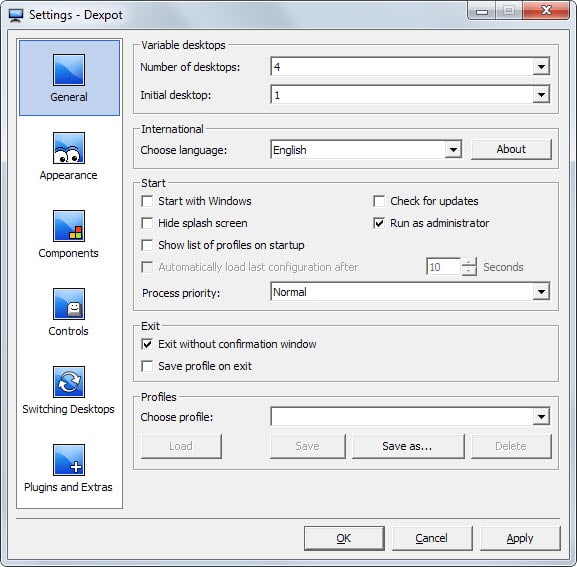
Dexpot can be run right after you have downloaded the portable version offered on the developers website. It creates three virtual desktops by default which you can increase to 19 in the program interface.
Here you can also make dozens of modifications such as saving profiles, changing the appearance of program features and desktops, or modifying hotkeys and controls.
Windows can be moved between desktop environments and Dexpot's plugin system makes available extra features such as support for hot corners or dividing desktops into grids.


Finestra Virtual Desktops

finestra options

Finestra Desktops is a highly configurable program for Windows that you can use to create as many virtual desktop environments as you require.
It supports the usual features such as hotkey switching and appearance changes but also several features that most programs of its kind don't offer.
This includes support for multi-monitor systems, rules to launch programs always on the selected desktop, as well as plugin support.


Multi-Desktop

multi desktop

The free program provides you with access to three virtual desktops on start after installation. You can switch between desktops using the small window displaying them, the system tray icon, or by using hotkeys to do so.
You can change the hotkeys using the system tray icon and set different wallpapers for each virtual desktop. The only other options provided are to switch skins and languages, and to start the program on boot.


nSpaces

nspaces

The program does not seem to have any limitations in regards to how many desktops you can create using it. Each desktop can be configured individually in the interface. This includes specific hotkeys, wallpapers and password to protect against unauthorized access.
You can switch between desktops using hotkeys or the system tray menu. The application requires the Microsoft .NET Framework 3.5 or later and needs to be installed.


SharpDesktop

sharpdesktop

SharpDesktop displays a small desktop switcher window on the desktop on start. You can use it to switch between windows, or use the program's system tray icon to do so instead.
The program does not support as many features as other programs of its kind, but if you require lots of virtual desktops, its 100 desktop limit may make it interesting to you.


Virtual Dimension
virtual-dimensions

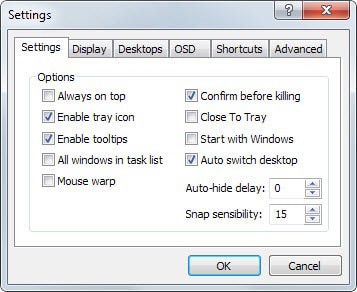
The free program has not been updated since 2005 but worked fine on our Windows 7 Pro 64-bit test system. It provides you with options to create as many desktops as you require, options to set hotkeys and wallpapers for each desktop individually, an on-screen display for you to configure, as well as options to configure hotkeys for window and desktop switching operations.


VirtuaWin

virtuawin


VirtuaWin is a sophisticated program that enables you to create up to 20 desktop environments. It is offered as a portable version and ships with lots of features that make it one of the most complete virtual desktop managers for the Windows operating systems.
It supports all the usual features, such as using hotkeys to switch between environments, but excels when it comes to additional features such as using the mouse to move between desktops, moving program windows from one desktop to the other, or configuring automatic window behavior, so that specific program windows are always opened on the selected desktop.
Especially the hotkeys that it makes available need to be mentioned here. There are so many options provided, for instance to move a window and follow it to the desktop it was moved to, that solutions for the majority of use cases are provided.


Windows Pager

windows-pager

You can run the program right after you have unpacked it on your system. Configuration is limited to editing an .ini file which you find in the program directory.
Here you can change hotkeys or the number of desktop environments that you want to have at your disposal.
All desktops are displayed in the taskbar so that you can switch between them with a single click.


Xilisoft Multiple Desktops

xilisoft multiple desktops


You can create up to eight virtual desktops using the program after installation. The desktop manager supports keyboard and mouse hotkeys to switch between environments, and options to password protect select desktops to protect them from unauthorized access.


Feature Overview

Program Name Desktops Hotkeys Portable Memory Other Features


9Desks 9 yes no 4.2 Megabyte Application rules, password protection, move programs
BetterDesktopTool 20+ yes no 15.5 Megabyte
Desktops 20+ yes yes 1.7 Megabyte global applications, change desktops using mouse or hotkeys, move programs
Dexpot 20 yes yes 5.8 Megabyte Multi-monitor support, move programs, mouse desktop changing, appearance customizations
Finestra Desktops 20+ yes no 64.2 Megabyte Application rules, multi-monitor support, mouse desktop changing, appearance customizations
Multi-Desktop 4 yes no 3.1 Megabyte
nSpaces 4 yes no 28.3 Megabyte requires .net Framework, password protection
SharpDesktop 20+ no yes 15.7 Megabyte
Virtual Dimension 20+ yes no 2.1 Megabyte on-screen display, move programs, mouse desktop changing
VirtuaWin 20 yes yes 1.8 Megabyte Move windows, mouse desktop changing, automatic window rules
Windows Pager 20+ yes yes 1.8 Megabyte ignore programs, configuration changes via .ini file
Xilisoft Multiple Desktops 9 yes no 17.6 Megabyte Password protection


Recommendations

So which virtual desktop manager is right for you? If you are concerned about memory usage try VirtuaWin or Desktops. Both applications use a minimal amount of memory and provide you with a solid feature set that you can work with.
Other programs make sense only if you require functionality they make available. If you want multi-monitor support, try Dexpot, and if you want password protection, check out 9Desks which offers that feature.

Source: http://www.ghacks.net/2014/08/09/the-best-virtual-desktop-managers-for-windows/

Virgo is a 7 Kilobyte virtual desktop manager for Windows

Virgo is probably the lightest virtual desktop manager that exists for the Windows operating system. At 7 Kilobyte on disk and less than 1 Megabyte of RAM when it runs, it is hard to beat.
Existing windows versions do not ship with virtual desktop functionality and while that will change when Windows 10 comes along, it will take years before the operating system may take the crown as the most used version of Windows provided that it won't fail as hard as Windows 8 did.
The majority of Windows users who want access to virtual desktop functionality will rely for years to come on third-party solutions.
Virgo is a portable program that you can run from any location on your system after you have extracted it. The single executable has a size of 7 Kilobyte on disk and no graphical user interface.
The program does add an icon to the system tray indicating the number of the desktop that is currently displayed.
If you are using Windows 7 or newer, you may want to configure the icon to be always visible in the tray area if you require a visual reminder of that.

virtual desktop virgo


You are probably wondering how you control the switching then and other functionality. Easy: with shortcuts. The program supports three types of hotkeys:
  • Alt-1 to Alt-4 - Switch between the four desktops it adds to the system.
  • Ctrl-1 to Ctrl-4 - Move the active window to the desktop corresponding to the number you enter.
  • Alt-Ctrl-Shift-Q - Exit the program.
The switching is ultra-fast with no visible delay between desktop renders, and the same is true when you move windows to another desktop. In fact, the program seems to have been built with performance and speed in mind as it runs well and without any delays.
There is virtually no delay when you are using the program which is impressive, especially if you consider the size of the program.
The author of the program has uploaded it to Github. You may download the zipped executable for Windows from there but also the source code of it.

Verdict
Virgo is an amazing program that works extremely well, is as lightweight as it gets without sacrificing performance for it.
One issue that you may run into is that it maps shortcuts globally that may be used by other programs. Ctrl-1 to 4 for instance are used by web browsers to switch to the first four tabs in the browser.
Since there is no option to remap shortcuts, you may lose functionality when you run Virgo on your system. Other than that though it is an excellent program that I cannot recommend highly enough.

You can download it from here: https://github.com/papplampe/virgo

Source: http://www.ghacks.net/2015/05/26/virgo-is-a-7-kilobyte-virtual-desktop-manager-for-windows/

August 23, 2015

Turn your Word doc into a PDF with a live table of contents


Jon Berger asked for a way of “creating PDFs with automatic links in the table of contents” to chapter titles in the main body of the document.


A long report needs to be broken up into sections. Readers will want shortcuts to the chapters that most interest them. So, if you’re distributing your reports as PDFs, you’ll want live tables of contents in which readers can easily go to the chapters they want to read.
Fortunately, this is easy to do in Word 2010 or 2013 (I haven’t tested this in earlier versions).

 
First of all, you need to set up your document properly. Use Word’s outline styles—Heading 1, Heading 2, and so on—to organize your report. For instance, you might want to assign large section titles as Heading 1, chapter titles as Heading 2, sub-chapters as Heading 3, and so on.
By the way, using these headings has other advantages. You can select View>Outline and work on your document as a collapsible outline. Also, the left tab of the Navigation pane uses these styles.
0817 outline
But back to the table of contents.
0817 toc

When you’re ready to distribute your document, select the References tab and click Table of Contents. Select a table design.

You’ll now have a table of contents at the top of your document. What’s more, each item on it will be a link that will take the reader to another part of the document.
Now you have to convert it to a PDF. And forget about print-to-PDF programs such as Bullzip. They’re handy for a lot of things, but I haven’t yet found one that can create a PDF without sacrificing the links. (And when you think about it, the reason is pretty obvious. You can’t expect a “printed” document to be interactive.)

So you have to do the conversion in Word. Press F12 to bring up the Save As dialog box. In the Save As Type pull-down menu, select PDF. Then save the file.
The resulting .pdf file will start with the table of contents. Every line of that ToC will be a link. It won’t be blue, but clicking on it will have the desired effect.

Source: http://www.pcworld.com/article/2954570/software-productivity/turn-your-word-doc-into-a-pdf-with-a-live-table-of-contents.html#tk.rss_howto

August 17, 2015

How to Set the Priority of a Message in Outlook 2013

While typing your message, select the Message tab in the Ribbon and click the arrow beside Tags.The Properties dialog box appears. This dialog box enables you to define a number of optional qualities about your message.


Click the triangle beside the Importance box.
A menu of choices drops down.

Choose Low, Normal, or High. Click the Close button (or press Esc) to close the Properties dialog box.
Usually Importance is set to Normal, so you don't have to do anything. Putting a Low importance on your own messages seems silly, but you can also assign importance to messages received in your Inbox, to tell yourself which messages can be dealt with later, if at all.


Source: http://www.dummies.com/how-to/content/how-to-set-the-priority-of-a-message-in-outlook-20.pageCd-storyboard,pageNum-3.html#slideshow


August 5, 2015

How To Upgrade Your Windows 7 To Windows 10 Right Away

Now that Microsoft has started rolling out Windows 10 via Windows Update to PC users who have previously reserved their free upgrade, many users are still wondering why they can’t see the update on their Windows 7 and Windows 8.1 PCs yet.
Because Microsoft is rolling out Windows 10 in “waves”, not all users are getting Windows 10 update right now. Although most users should see the update in the next couple of hours, some users might need to wait for another two or three days to see the Windows 10 update.
Windows 10


That said, if you are running Windows 7 Service Pack 1 or Windows 8.1 Update and can’t wait for the updates to reach your computer, you will be happy to know that you can legally upgrade your Windows 7 or Windows 8.1 computer to Windows 10 right away.

This method is perfect for users who have already registered for the free upgrade, and also for those users who haven’t registered for the free upgrade but want immediately upgrade their Windows 7 and Windows 8.1 installation to Windows 10.

Upgrade Window 7/8.1 to Windows 10 right away

To upgrade your Windows 7/8.1 installation to Windows 10 right away, please complete the given below instructions.
WARNING: Although this method is safe and you can preserve your installed programs and data during the upgrade, we recommend you create backup of all important files using programs like EaseUS System GoBack (free).
We are not responsible for your data and any damage that might occur during the upgrade, which is very unlikely though.
Step 1: First step is to manually launch Windows Update on your Windows 7 or Windows 8.1 and install all available updates.

Upgrade Windows 7 to Windows 10 right now

As you likely know, users must be running Windows 7 SP 1 or Windows 8.1 Update to be eligible for the free Windows 10 upgrade.
Step 2: Next, download Windows 10 Media Creation Tool from the following links:
Download 32-bit
Download 64-bit
If you’re running Windows 7/8.1 32-bit version, please download the 32-bit version of Media Creation Tool. Likewise, if the current Windows 7 or Windows 8.1 installation is 64-bit, please download the same. Note that it’s not possible to directly upgrade from 32-bit Windows 7/8.1 installation to 64-bit Windows 10.
Step 3: After downloading the Media Creation Tool, right-click on it and then click Run as administrator option.
Click Yes button when you see the UAC prompt.
Step 4: On the home screen of Media Creation Tool, select the first option labelled Upgrade this PC now, and then click Next button to begin downloading Windows 10.

Upgrade your Windows 7 to Windows 10 step1

Step 5: Once Windows 10 install/upgrade files are downloaded onto your PC, you’ll see the following screen.

Upgrade your Windows 7 to Windows 10 step2
Upgrade your Windows 7 to Windows 10 step3
Upgrade your Windows 7 to Windows 10 step4
Upgrade your Windows 7 to Windows 10 step5

Step 6: And when you see the following screen, click Accept button to accept the license agreement.

Upgrade your Windows 7 to Windows 10 step7

Step 7: The setup might start looking for updates again. If there are any updates, it will download available updates, and this might take few minutes to hours depending on your internet connection speed.

Upgrade your Windows 7 to Windows 10 step8

Step 8: Finally, when everything is ready, you will see Ready to install screen. DON’T CLICK INSTALL button yet.

Upgrade your Windows 7 to Windows 10 step9

Check if the setup will keep all personal files and apps. If it’s showing only Keep personal files or Keep nothing, click Change what to keep link and then select Keep personal files and apps option.

Upgrade your Windows 7 to Windows 10 step11

Step 9: Finally, click Install button to begin upgrading your Windows 7/8.1 to Windows 10 for free.

Upgrade your Windows 7 to Windows 10 step12
Hope this helps!

Source: http://www.intowindows.com/how-to-upgrade-your-windows-7-to-windows-10-right-away/

July 31, 2015

101 Free Online Alternatives to Popular Desktop Software

Many of us are quite familiar with the suites of office tools that come with our computers, and in fact, we use them every day for a wide variety of word processing tasks. However, the Web offers many free online alternatives to these (sometimes quite pricey) software packages that work just as well or better than their offline equivalents. Here are one hundred and one free online alternatives to popular desktop software packages, ranging from slideshows to email managers to document creation to file management.
Free software icons - Backdrop: Jamie Farrant/iStock Vectors/Getty Images
Backdrop: Jamie Farrant/iStock Vectors/Getty Images

1.  Word Processing

  • Google Docs: Free online office suite that offers document processing, spreadsheets, even work collaboration.
  • Acrobat: Create PDF files, convert files, and make forms.
  • PDFescape: Free PDF form editor within your browser; can also use it to fill in PDF forms online.
  • OpenOffice: Free open source productivity package that is similar to Microsoft Office.
  • AbiWord: Simple word processing program; multiple people can collaborate on one project.
  • Zoho: A free online word processor that works within your Web browser. Share, collaborate, edit, create.
  • NumSum: Create and share Web spreadsheets.
  • Writer: Simple writing utility meant to encourage concentration and focus.
  • CKEditor: Web-based text editor.
  • NeoOffice: Full office suite for Mac users.

2.  Communication

  • Meebo: Centralized dashboard for several different instant messaging programs.
  • TokBox: Live group video chat anywhere, anytime.
  • faxZERO: A free fax tool you can use on your computer (covered more fully in Five Ways to Send a Free Fax Online).
  • Google Voice: A centralized online space for phone calls and voice messages.
  • OoVoo: Free video chat from mobile to mobile, mobile to computer; up to six people at once.
  • eBuddy: Web-based instant messaging that works on any computer; integration of all popular chat programs.
  • Pidgin: Instant messaging plugin for simultaneous chat networks.
  • Trillian: Chat client for computer and phone.

3.  Presentations

  • Sliderocket: Easy to use with many of the same features as PowerPoint.
  • Prezi: Create high quality presentations completely online.
  • ScreenCastle: Free screencast recorder you can use to film activity within your browser.
  • Vcasmo: Multimedia presentation tool with a wide variety of interactive features.
  • Empressr: Presentations with photo, music, audio, and video; can embed anywhere on the Web.
  • Animoto: Slideshows from videos and photos.
  • Flixtime: Video slideshows with sophisticated graphics.
  • PhotoPeach: Free slideshow utility.
  • SlideShare: Share your presentations with others.
  • Screenr: Instant screencasts with a Web-based screen recorder.
  • Storify: Make slideshows using social media content.
  • Vuvox: Produce videos using your own multimedia.

4.  Security

  • ESET Online Virus Scanner: Finds and removes threats; not intended as a full security suite, but a good option.
  • LastPass: Keeps track of all your passwords in one convenient, secure location.
  • VirusTotal: Identifies suspicious files or URLs.
  • ClamXAV: Free virus scanner for Mac computers.
  • Virscan: Free Web-based file scanner; upload a file and it will scan it for infections.
  • Avira: Free antivirus protection program for home computers.
  • Avast: Free protection against viruses and spyware.
  • AVG Rescue CD: Helps you identify deep-rooted virus/spyware infections and get your computer working again.
  • MalwareBytes: Scans your computer for spyware, malware, and viruses.
  • Microsoft Security Essentials: Free antivirus protection from Microsoft.

5.  Image and Video Management and Manipulation

  • Aviary: Similar to Photoshop; all sorts of image manipulation/editing tools here.
  • JayCut: A free online video editor.
  • Splashup: Free image editor and photo manager.
  • SmugMug: Free photo management tool.
  • Vixy: Download videos and convert them into playable formats for your computer.
  • Miro: Converts video files for playback on computers and mobile devices.
  • Talon: Instant screenshot utility; also available as a Google Chrome extension.
  • GIMP: Offers many of the same features as Adobe Photoshop; free image editing program.
  • Pixlr: Online photo editor with menu of advanced effects.
  • Rsizr: Re-sizes images fast.
  • FotoFlexer: Advanced Web-based photo editor.
  • Picnik: Browser-based photo editor with menu of special effects.

6.  Organizational Tools

  • Evernote: Jot notes, take pictures, and organize your thoughts and online life in one place.
  • Springpad: Save, organize, and remind yourself with Springpad's easy to use interface.
  • Toodledo: Type in what your day looks like, and Toodledo organizes it into a personalized to-do list.
  • Toggl: Tracks time spent on task so you can more easily bill it.
  • iClippy: Captures data from anything you copy and paste (text, video, images) and puts it in one convenient place.
  • Zootool: Organizes all your Web bookmarks into a searchable index.
  • MyNoteIt: Geared towards students; a great way to organize notes and share with others.
  • Remember the Milk: Management of all online or offline tasks.

7.  Calculators, Graphs, and Financial Management

  • Mint: Similar to Quicken, Mint offers one of the most robust financial management dashboards on the market.
  • Instacalc: For any mathematical computation you might need. Includes scientific notations.
  • Gliffy: Create free diagrams, graphs, flowcharts, and technical drawings.
  • Web 2.0 Calc: Scientific calculator with standard functions.
  • Create a Graph: Easy online graphs for simple projects.
  • GnuCash: Free accounting software for home and business use.
  • Hourly Rate Calculator: Helpful for freelancers who are trying to figure out how much to bill clients.
  • Buxfer: Free online money management with an intuitive dashboard.
  • Yodlee: Track spending, pay bills, and control your budget.
  • eCalc: Scientific calculator available online and as a download.

8.  File Management, File Sharing, File Conversion, and File Organization

  • WobZip: Unzip compressed files, either from your computer or online.
  • Zamzar: Fantastic tool for file conversion with dozens of file formats available.
  • WebFTPer: Browser-based FTP (file transfer protocol) tool; manage your website files from anywhere with an Internet connection.
  • Movavi: Free file conversion tool that converts multiple files at the same time (limited file size/length).
  • Ubikuo: Storage of online notes available anywhere with an Internet connection.
  • Dropbox: Free file hosting service that allows users to access their files from anywhere.
  • eSnips: Upload, share, or download files, photos, videos, or music.
  • Mediafire: Free hosting and sharing for any file.
  • YouConvertIt: Free file conversion for wide variety of file types.

9.  Project Management and Project Collaboration

  • Pirate Pad: Streamlined notepad application that enables anyone anywhere to collaborate on a project in real time.
  • Mindmeister: Free brainstorming tool with collaborative features; free but does include tiered pricing options for more features.
  • Bubbl.us: Highly functional brainstorming tool that can be used in tandem with other people.
  • Mindomo: Collaborative mind-mapping tool; real time sharing and file uploads.
  • Meeting Wizard: Arrange and schedule meetings between multiple people groups.
  • Writeboard: Collaborative web-based text document creator/editor.
  • Vyew: Free real time meetings, collaboration, annotations.

10.  Lists, Calendars, and Productivity Tools

  • 30 Boxes: Track birthdays, friends, and tasks with this interactive calendar tool.
  • TaDa List: Web-based list maker; make lists and share lists.
  • Monkey On Your Back: A to-do list for what you would like other people to get done.
  • TimeXChange: Task tracking with time/project features.
  • Todoist: Personal project tracking and management.
  • Tom's Planner: Personal project management via charts.
  • Evernote: Organize your notes, photos, videos, etc. in one place for easy access.
  • LiveBinders: Collect online "resources" and organize them easily.
  • Doodle: Create and manage events for multiple participants.
  • Upcoming: Track event calendars in your local area.
  • Google Calendar: Make multiple calendars, share events, track workflow.

Source: http://websearch.about.com/od/web20officealternatives/tp/101-Free-Online-Alternatives-To-Popular-Desktop-Software.htm

July 23, 2015

The Best Free Antivirus for 2015 -PCMAG.COM

By Neil J. Rubenking, June 23, 2015

Relying on Windows's built-in antivirus for protection is a big mistake. Luckily, you can get an upgrade without paying a cent.

Independent Lab Antivirus Test Results
Around the world, researchers at independent antivirus testing labs spend their days putting antivirus tools to the test. Some of these labs regularly release public reports on their findings. I follow six such labs closely: AV-Comparatives, AV-Test Institute, Dennis Technology Labs, ICSA Labs, Virus Bulletin, and West Coast Labs.

Security companies typically pay for the privilege of being included in testing. Doing so also gets them detailed reports that can help improve their products. The number of labs that include a particular vendor serves as a measure of significance. In each case, the lab considered the product important enough to test, and the vendor felt the price was worthwhile. The labs don't necessarily test a vendor's free product, but most vendors pack full protection into the free product, enhancing premium versions with additional features.
I've worked out a system for aggregating lab results, yielding a lab score from 0 to 5, or N/A if there just isn't enough data. Recently a couple of vendors have come under fire for sending a version for testing that's not what customers get and for weakening protection in order to ace performance tests. Of course we believe that the product supplied for testing should be precisely what customers get, and that it should be designed to maximize protection, not tweaked to pass tests.
 
PCMag Antivirus Test Results
In addition to carefully perusing results from the independent labs, I also run my own hands-on malware blocking test. I expose each antivirus to a collection of malware samples, including one ransomware sample, and note its reaction. Typically the antivirus will wipe out most of the samples on sight, and detect some of the remaining ones when I try to launch them. I derive a malware blocking score from 0 to 10 points based on how thoroughly the antivirus protects the test system from these samples.
Since I use the same samples month after month, the malware-blocking test definitely doesn't measure a product's ability to detect brand-new threats. In a separate test, I attempt to download malware from 100 very new malicious URLs, typically less than four hours old. I note whether the antivirus blocked all access to the URL, wiped out the malicious payload during download, or did nothing. 

Useful Features
Just about every antivirus product scans files on access to make sure malware can't launch, and also scans the entire system on demand, or on a schedule you set. The one exception in the current collection is a tool aimed very specifically at detecting attempts to exploit vulnerabilities in the operating system or applications. That tool, Malwarebytes Anti-Exploit Free, is designed for use in conjunction with a regular antivirus.
Blocking all access to malware-hosting URLs is a nice way to avoid trouble. Many products extend that protection to also steer users away from fraudulent websites, phishing sites that try to steal login credentials. A few rate links in search results, flagging any dangerous or iffy ones.
Behavior-based detection, a feature of some antivirus products, is a two-edged sword. On the one hand, it can detect malware that's never been seen before. On the other hand, if it's not done right, it can baffle the user with messages about perfectly legitimate programs.
One easy way to keep your PC protected is to install all security updates, both for Windows and for browsers and other popular applications. Scanning for vulnerabilities in the form of missing updates is a feature most often found in commercial antivirus products, but it does turn up in some free ones. Other useful bonus features include preventing USB-based malware attacks, scanning for router weaknesses, and cleaning up traces of browsing history. In the chart above you can see which products include these useful features.

What's Not Here
This article reports only on free antivirus products that received at least a good rating in our reviews—the best products. Among those that didn't make the cut is Microsoft Security Essentials / Windows Defender. All of the independent labs I follow do include Microsoft in testing, but most use it as a baseline. If a product can't do better than the baseline, it's got real problems. My aggregate lab score for Microsoft comes to zero stars. Zero stars! In addition, it performed poorly in all of my hands-on tests.
There are also numerous free antivirus utilities that work solely to clean up existing malware infestations. You bring out these cleanup-only tools when you have a nasty malware infestation. When the problem's gone, they have no further use, since they offer no ongoing protection. Our Editors' Choice in this category is Malwarebytes Anti-Malware 2.0, and it's definitely one you should try if you've got a malware problem. But since they're free, you can keep trying others if the first one doesn't do the job. When the scare is over, you'll need a full-blown antivirus for ongoing protection.

What's Best
Our current Editors' Choice for free antivirus utility is Panda Free Antivirus 2015. Panda gets very good scores from the independent labs, and in our own tests as well. It also includes some useful bonus features. Bitdefender Antivirus Free Edition (2014) is good, too, though Bitdefender's commercial edition is significantly better. As always, given that these products are free you can shop around, try several to see which suits you best.


Panda Free Antivirus 2015

Panda Free Antivirus 2015
Free
Panda Free Antivirus 2015 scores on par with the best commercial antivirus tools, both in our hands-on tests and independent labs tests. It's a new Editors' Choice for free antivirus. Read the full review ››


Bitdefender Antivirus Free Edition (2014)

Bitdefender Antivirus Free Edition (2014)
Free
You'll hardly know Bitdefender Antivirus Free Edition (2014) is present on your system, unless it quashes a problem. Its tiny main window and unobtrusive style are great if you want a strong, silent, and free antivirus solution. Read the full review ››


Malwarebytes Anti-Exploit Free

Malwarebytes Anti-Exploit Free
Free
Malwarebytes Anti-Exploit Free shields your browsers against exploit attacks, even never-before-seen zero-day attacks. Give this unusual, free security tool a try. Read the full review ››


Ad-Aware Free Antivirus+ 11

Ad-Aware Free Antivirus+ 11
Free
The folks at Lavasoft gave Ad-Aware Free Antivirus+ 11 a total user-interface makeover and a new antivirus engine partner. The user interface is truly pleasing, a nice change. However, the product lost a little ground in malware blocking. Read the full review ››


Avast Free Antivirus 2015

Avast Free Antivirus 2015
Free
The new home router security check in Avast Free Antivirus 2015 is brilliant; this area has been totally overlooked by most vendors. However, the product's central antivirus protection is just average. Read the full review ››


AVG AntiVirus Free 2015

AVG AntiVirus Free 2015
Free
AVG AntiVirus Free 2015 has a new look, and its Web TuneUp tool enhances browser security. It's a very good choice for free antivirus. Read the full review ››


Qihoo 360 Total Security Essential

Qihoo 360 Total Security Essential
Free
Qihoo 360 Total Security Essential scores very well in our hands-on tests and in tests by independent labs, but only if you change its default configuration to enable all antivirus engines. Read the full review ››


Comodo Antivirus 8

Comodo Antivirus 8
Free
Comodo Antivirus 8 offers decent antivirus protection and a whole raft of advanced security features. However, those advanced features are probably too complex for the average user. Read the full review ››


FortiClient 5.0

FortiClient 5.0
Free
Although it's designed to work with a network appliance, FortiClient 5.0 also functions as a standalone antivirus, with parental control and VPN client thrown in. And it's free! Read the full review ››


Source: http://www.pcmag.com/article2/0,2817,2388652,00.asp