November 19, 2015

12 Tips to Take Better Notes with Microsoft OneNote


Can the way you take notes change your life? I think so. Microsoft think’s so, too.
And young Kyle Madinger proves this for Microsoft’s note taking tool with his success story from Canada. In OneNote Hero: A Student Success Story, he is the hero who goes from struggling homeschooler to classroom success. Every Frodo needs a Sam. Any hero needs a dependable companion. In his case, Microsoft OneNote gave him the space to develop his motor skills.
Okay, there might be a bit of marketing storytelling hidden between the frames, but let’s not deny digital notetaking skills its due. Our school system taught us a linear way of note-taking which was neither effective nor digital. If you are still buried in books, an earlier look at OneNote skills for students and teachers still holds true. For those out of school, note-taking is still tailing us through meeting rooms and shopping aisles.
It’s time to take better notes. If you want to do it with Microsoft OneNote, follow me down the lane of note-taking productivity with these 12 tips.


1. Quick Notes — The Center Piece for Better Notetaking

Microsoft OneNote - QuickNote
Ever searched for a scrap of paper to jot down something without thinking too much about it? Quick Notes (formerly called Side Notes) is that digital “scrap of paper”. But unlike those scraps of paper, you won’t lose them because Microsoft OneNote saves them automatically.
There are two ways to start Quick Notes.
Note: Quick Notes appear with a simplified interface and a customizable lavender background. Click the row of buttons on top if you want to access the Ribbon. Sometimes, I like to open the Ribbon and just tag the note before I fire and forget it.

When the OneNote Window Is Not Open

Press Windows + N on your keyboard. The little new Quick  Note window appears like an always on top pop-up. Type your note in the small note window.
Microsoft OneNote - Shortcut Key
Format the text by selecting it and then using the commands on the mini toolbar that appears.
Repeat the steps for any additional Quick Notes you want to create. (Alternatively, use shortcut key Windows + Alt + N on your keyboard). Quick Notes are automatically saved to your notebook’s Quick Notes section.
Microsoft OneNote - All Filed

When The OneNote Window Is Open

You can still use the shortcut key. Or go to the Ribbon > View > New Quick Note.
Microsoft OneNote - New Quick Note
Type your note in the small note window. Click the three little dots to display the Ribbon. Format the text by using the commands that appear.
Repeat the steps for any additional Quick Notes that you want to create.
The best thing about Quick Notes is that you can fire them out and forget them. All quick notes are saved automatically in the Unfiled Notes section in your default notebook. Go there later and organize them if you so wish.
With that explained, now let’s exploit Microsoft OneNote’s Quick Notes feature for all our note-taking needs.


2. Pin Quick Notes to the Desktop

Pinning Quick Notes to the desktop helps you keep the little notes window on top and insert notes from any tool you are working with. For instance, an open browser window.
To pin the Quick Note window, click the three little dots to display the Ribbon. Go to View > Always on Top. Think of it as a “sticky note”.
Microsoft OneNote - Quick Note on Top
Drag and drop any selected content. OneNote saves it automatically with the source link.
Some useful Microsoft OneNote shortcuts you can use for quick notes include:
  • CTRL+1 for creating quick to-do lists,
  • ALT+SHIFT+F (for inserting the current date and time),
  • CTRL+PERIOD for a quick bulleted list,
  • CTRL+SLASH for a numbered list, or
  • ALT+SHIFT+RIGHT ARROW (or use the TAB) to create indents and outline your thoughts.


3. Access Your OneNote Pages with Shortcuts

Any note you create in Microsoft OneNote can be directly given a shortcut. Create a few note shortcuts on the desktop and try them to see if they speed up your note-taking workflow.
In OneNote, right click on the page tab, or section tab that you want the shortcut to go to. Choose Copy Link to Notebook, Copy Link to Section, or Copy Link to Page.
Microsoft OneNote - Create Desktop Shortcut
Go to your desktop. Right click on the desktop. Choose New > Shortcut. In the location box, press Ctrl-V to paste the OneNote hyperlink.
Microsoft OneNote - Desktop Shortcut
Click Next. Give the shortcut any name to indicate its function. Click Finish.
You can speed this up even further by giving the shortcut its own keyboard shortcut. Right click on the shortcut icon and choose Properties. Select the Shortcut Key box and press the key combination you want for the shortcut.


4. Take Linked Notes

OneNote really comes to the party when you have to work with other Microsoft Office apps. Two features help you use the apps side by side.
Dock to Desktop. Work on any other open window by docking OneNote to the side of the screen. Use the shortcut CTRL+ALT+D or go to Ribbon > View > New Docked Window.
In the screenshot below, you will notice that I have created a button for it on the Quick Access Toolbar.
Microsoft OneNote - Dock to Desktop
Usefulness of Linked Notes. By linking OneNote to Internet Explorer, Word, PowerPoint, and even other OneNote pages, you can take notes in OneNote while simultaneously using the other program. Both files are automatically linked to whatever you’re researching. This saves you a lot of copy and paste. Also, you can always refer back to either the note or the main document by clicking on the link.
For instance: In the collaborative Microsoft Office 2016, you can keep track of discussion and ideas about a document or presentation with Linked Notes.
Open Word, PowerPoint or OneNote, click Review > Linked Notes.
Microsoft OneNote - Linked Notes
In the Select Location dialog box, pick a location for the new notes page and click OK.
Microsoft OneNote LinkedNote
When you select a section, a new page is created in it. If you select an existing page, your linked notes will be added to that page. Move the cursor to where you want the notes to begin. OneNote stores a thumbnail image of the page, a text excerpt, and a link to the documents or web page you used for research. Clicking here you can always return to the source content.
Click on Stop Taking Linked Notes when you want to end this association.
We have seen how Linked Notes work in Microsoft Word 2010 and OneNote 2010. The same process continues in Microsoft Office 2016.


5. Take Quick Notes with Only Your Voice

Voice memos have existed since the first Dictaphone. With Siri and Google Now around, no one thinks we are abnormal anymore.
OneNote is free on all platforms. You can take notes (and voice notes) with the Windows Desktop application and the apps on Windows Phone, Apple iPad, iPhone and Android. On the desktop app, you can take synced audio notes which are really great for meetings.
Mix and match normal notes and audio notes. OneNote makes it more useful by recording to the specific time of the audio note. When you are reviewing your notes, you can quickly jump to the position of the recording when you took the note.
Microsoft OneNote - Audio Notes
You can use the search bar to search for words in the recorded audio as well. Your search mileage may differ depending on the quality of the recording.
To turn on Audio Search:
Click File > Options > Audio & Video. Under Audio Search, select Enable searching audio and video recordings for words and click OK.
Search Audio in OneNote
With the help of mobile apps, you can just tell OneNote your thoughts and it will file it away as a Quick Note. Your note-taking experience is enhanced with Cortana on Windows 10, Windows Phones, Siri on iPhones, and Google Now on Androids.
The Windows Support article shows how to create quick notes in OneNote using only your voice.


6. Email Notes to Yourself

The video above shows a quick use self-notes with a me@onenote.com email address. You can use the same email address to send any content from a specific inbox to OneNote. This feature has been introduced in Microsoft OneNote 2016 and here’s how you can set it up in the blink of an eye from the OneNote Email Settings page.
Email Notes to Yourself
The Microsoft Blog says this is a great way to forward receipts, travel itineraries, or documents that you want to keep track of from your mailbox. As OneNote is synced, your notes will appear on all platforms where you use it.


7. Send to OneNote from Chrome

Microsoft OneNote integrates nicely with Internet Explorer. But who uses that anymore? People use Chrome…so say a hello to the OneNote Clipper. Capture anything on a webpage with the extension and send it to a specific location in OneNote. The extension also cleans the clutter in articles.
Send to OneNote from Chrome
The new version of the Clipper has a redesigned user interface, a location picker, and region clipping for Chrome.


8. Take Notes from the Edge

The Clipper is for all that you do on Chrome.  With Windows 10, we have Microsoft Edge to play with. The new browser has a pen and a highlighter to help you annotate and take notes as you browse. You can then store the annotated pages in OneNote, Favorites, or Reading List in Microsoft Edge.
Taking notes with Edge


9. Take Screen Clips and Annotate

The Screen Clipper is a quick way to capture visual information with OneNote. Take a screen clipping of any part of your computer screen and add it as a picture in your notes.
To access the screen clipper, go to Ribbon > Insert > Screen Clipping. The screen is dimmed and you can use your mouse or finger to select the area of the capture.
OneNote Screen Clipping
And more:
  • With the OneNote system tray Quick Note icon, you can also create a screen clipping, without opening the main OneNote window.Screen Clipping from the Tray Icon
  • Use the Draw tools to annotate your screen clips.


10. Taking Notes with the Natural Ease of a Stylus

Writing notes with a stylus brings it close to the old-fashioned way of taking notes…with a few extra benefits. OneNote for Windows has a full Ribbon for inking since 2003. The Draw group on the Ribbon gives you pens, thickness options, and colors to choose from. Even without a stylus, you can draw, highlight, and edit with your finger or mouse on any touch-capable device.
OneNote for iPad has been updated with a similar feature set — four classic pens in the Draw tab and 16 colors to write or draw, and four colors to highlight with. Activate Palm Rejection on the Ribbon and set it for the way you hold the pen.
Perhaps the best experience comes from the killer combination of OneNote, Surface Pro 3 (or Surface 3), and the new Surface Pen.
And remember: OneNote also comes with OCR and handwriting recognition that works in 25 languages!


11. The Quickest Way — Office Lens

What can be quicker than snapping a photo of a whiteboard or a scribbled sheet? Office Lens is OneNote’s own scanner for taking those quick snapshots when you are too lazy to take notes yourself. Anything scannable is fodder for Office Lens. Office Lens has three modes to clean up your captures.
Office Lens
Combine the utility of Office Lens with OneNote’s OCR functions to organize the information from your scans neatly into your notes. Office Lens is available for Windows Phone, Android, and iOS.


12. OneNote and Outlook Work Together

For a professional user, notetaking and the inbox are like Siamese twins. One cannot do without the other. If Evernote pays attention to Gmail, Microsoft OneNote has to also include Microsoft Outlook in the mix. A basic way is to send your emails to your OneNote notes.
Even better, you can use Outlook tasks and reminders for any to-do in the future. The tasks are displayed in Outlook so you can track and view them — and also set reminders. Correspondingly, Outlook tasks are linked to the OneNote page.
Taking Notes from Outlook
Ryan showed you how to easily combine Outlook and OneNote into a powerful project management tool. You can even manage meeting details and send pages of notes via an Outlook mail. This Microsoft Support page walks you through the process.

Which Are the Note Taking Features You Are Using (Or Not Using)?

Maybe you like the fact that you can embed almost anything into OneNote. Maybe, it’s the deft with napkin math that makes you love the software. Or maybe, unlike Evernote, you can customize the background of the “paper” you are writing on. Microsoft OneNote gives you many reasons to like it, and only few to hate it.
We would like to know!
What are your best note taking tips for wannabe OneNote users? Which is the one feature that is still missing? Or do you still Evernote all the more? Tell us.


Source: http://www.makeuseof.com/tag/12-tips-take-better-notes-microsoft-onenote/

November 9, 2015

Editing PDF files using Word 2013

Editing PDF files

A PDF file is a type of file that is designed to be viewable on any computer. It is useful when you want to send a document to someone and you're not sure whether that person has Microsoft Word. PDF files are designed for viewing rather than editing, so they are ideal for situations where you have a final version that does not need any changes. However, if you need to edit a PDF file for any reason, Word 2013 allows you to edit it by converting it into a Word document.
Converting a PDF file into a Word document may cause some graphics and content to look different or disappear altogether.

To edit a PDF file:

  1. Select the File tab.
    Screenshot of Word 2013
  2. Backstage view will appear. Click Open.
    Screenshot of Word 2013
  3. Locate and open the PDF file you want to edit.


    Screenshot of Word 2013
  4. A dialog box will appear confirming whether you want to convert the PDF file into a Word document. Click OK.


    Screenshot of Word 2013
  5.  If the PDF file has content that Word is unable to convert, another dialog box may appear. Click OK.
  6. The PDF file will appear in the Word window as an editable document. You can now make any changes you want.

  7. Screenshot of Word 2013
  8. When you're ready to save, locate and select the Save command on the Quick Access toolbar.
    Screenshot of Word 2013

  9. The Save As dialog box will appear. Select the location where you want to save the document. If you want, enter a new file name.
  10. Click the Save as type: drop-down box, then select a file type. You can choose to save the document as a Word Document or as a PDF file.
  11. Click Save.


    Screenshot of Word 2013

Which file type should you choose?

After you finish converting and editing your PDF file, you'll need to decide whether to save it as a PDF file or a Word document. Depending on your situation, one option may work better than the other:
  • PDF: If you don't want to make any more changes to the document—or if you want to ensure that the file can be opened on any computer—save it as a PDF file.
  • Word document: If you want to continue making changes to the document—or if other people need to edit it—save it as a Word document. You can always save it as a PDF file when you're done making changes.

    Source: http://www.gcflearnfree.org/word2013/word-2013-editing-pdf-files

October 16, 2015

First look at the Office 2016 Preview for Windows

To start, it's more colorful.

Hot on the heels of Office 2016 for Mac, Microsoft today released a preview of Office 2016 for the operating system that it actually earns money from. You know—Windows.
In fairness, Windows isn't in such desperate need for an updated Office. Office 2013 is fresher than Office 2011 was, and so it's not altogether surprising that Office 2016 is to Office 2013 much the same as what Office 2013 was to Office 2010. This is a minor update with some small new features and a visual refresh.
The preview is currently aimed at IT professionals and developers, and as such it requires an active Office 365 subscription. A consumer-oriented preview should be released later in the year, but it's pretty clear that Microsoft wants people to subscribe to Office 365, and the company is going to continue to offer small perks for having a subscription. Last year's Outlook for Mac update was similarly an Office 365-only benefit.
The install process also seems to be a little janky. Signing in to the beta is done through Microsoft's Connect site, and in theory running the installation script Should Just Work™, but it's not always smooth sailing. For reasons that aren't immediately obvious, Office 2016 cannot coexist with Office 2013. The Preview is meant to replace 2013. On our test system, however, this was unsuccessful. 2016 did not install properly, and it instead left broken remnants of 2013 behind. Removing both and reinstalling 2016 appeared to work, however.
The preview will keep itself up to date using the same Click To Run download and deployment system that Office 365-provisioned versions of Office 2013 also used. Microsoft says that it will be releasing monthly updates to the preview and that the current version isn't complete. By default, the updating should be automatic and fairly transparent.

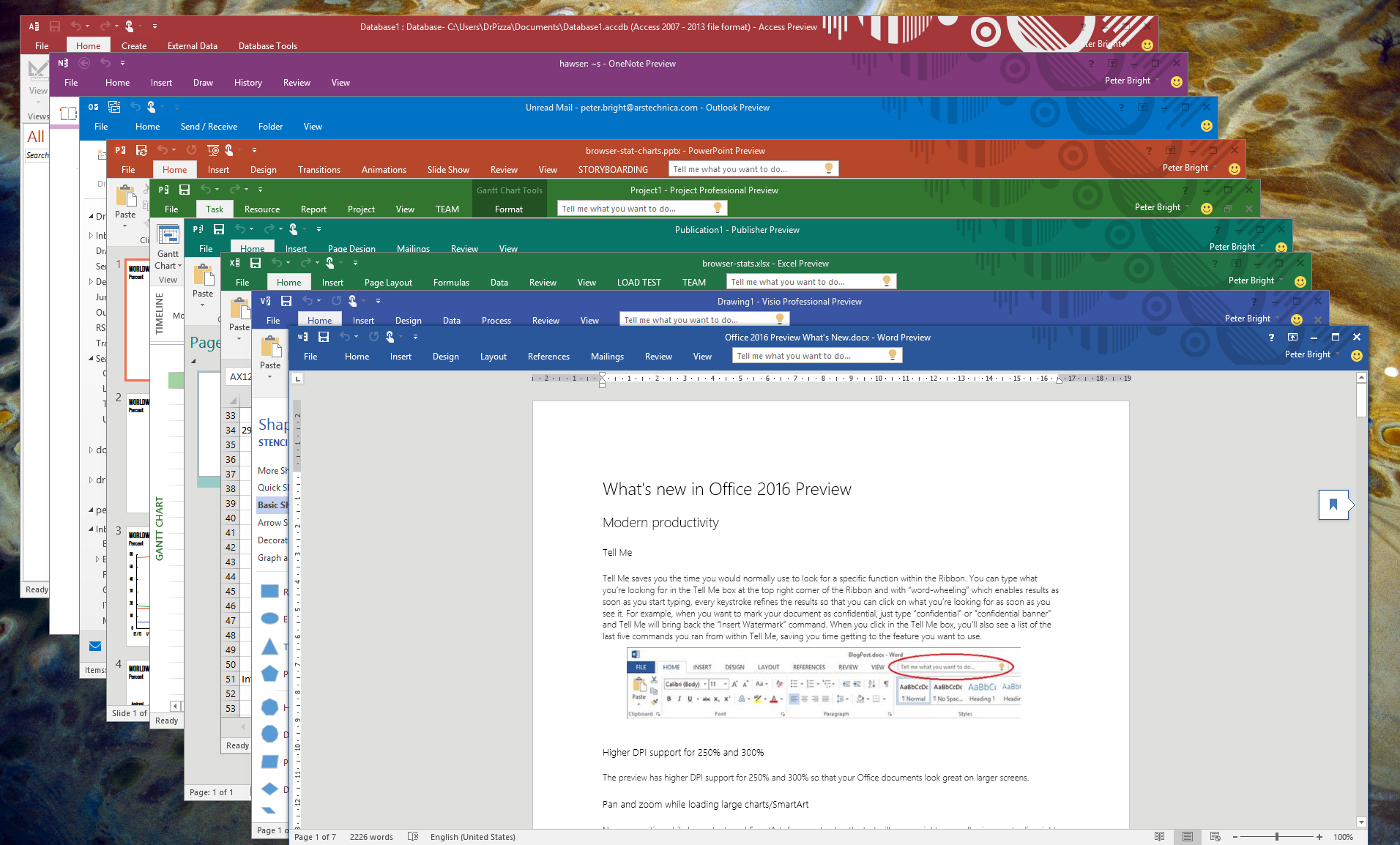
Enlarge / Why oh why oh why oh why isn't Outlook orange-gold anymore? Also, Access' colors are broken. Those white bits shouldn't be white.
On starting the apps, one change is immediately obvious. They're a lot more colorful than before. While the old white scheme (and several others, including a dark theme for those who find Office 2013 too bright) is still available, by default each Office app uses the app's color in its title bar and ribbon area, making the different apps a lot more distinctive. (Well, except Outlook, which still uses blue. It's not quite the same blue as Visio or the same blue as Word, but you know, it's all pretty damn similar, and I wish they'd bring back Outlook's gold color to distinguish it from its siblings.)
The next thing you'll notice is that some of the apps—Excel, Word, PowerPoint, Project, and Visio—have a new special entry on their ribbons: "Tell me what you want to do." Type what you want to do, and it'll show a sensible list of options. This "Tell Me" feature has been in the Office Web Apps for about a year now; adding it to desktop apps has been a long time coming. It's less clear why they haven't added this to all the apps.

File this one under "why didn't they do this in Office 2007?" Though there used to be add-ons, such as Scout, they weren't as convenient or built-in.
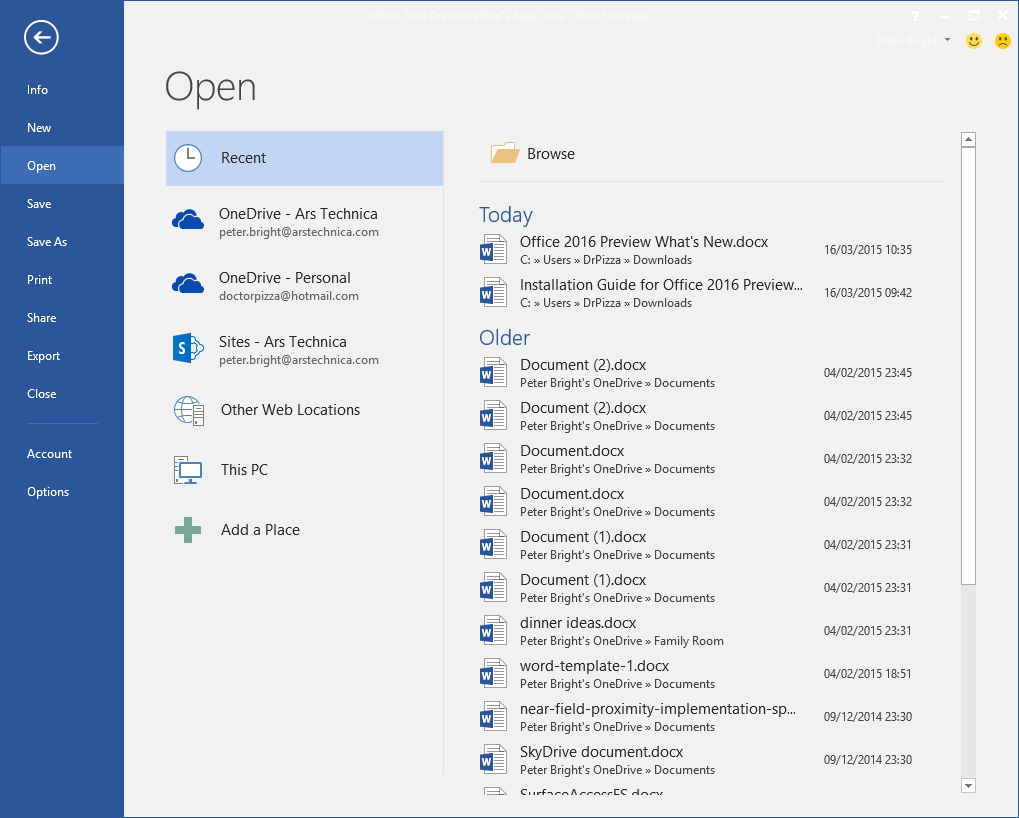
The "backstage" area used for saving, opening, print previewing, and similar tasks has also been slightly spruced up. Perhaps most usefully, the e-mail address for each online location has been added below the location's name, making it much easier to distinguish between home and work accounts. The Browse button is also consistently at the top.
Browsing for files to send as attachments should also be simpler, or even eliminated entirely, as the "add attachment" button in Outlook now provides quick access to all recently opened Office documents.
Of the apps themselves, Outlook's modifications are probably the ones that will be most widely appreciated. When the Outlook window is made particularly small, it changes behavior to work more like a mail client on a phone or tablet. Instead of the usual three pane view (a list of folders on the left, a list of e-mails in the middle, and the e-mail itself on the right), it'll shrink down to a two or one pane view, as dictated by the size. In its smallest single pane view, clicking an e-mail will open it in preview, with a back button at the top left to go back to the list of messages.

Enlarge / I don't really use Word, but the e-mail address identification of each account and top Browse button are both marginal improvements.
As another nod to small devices, Outlook can sync fewer mails. Outlook 2013 defaults to storing one month of mail locally. In 2016, this can be cut to 1, 3, 7, or 14 days.
Also handy for mobile users: Office apps will now respect orientation information embedded into photographs. Pictures taken on your phone will no longer end up on their side or upside down when you stick them into a Word document.

Outlook has some behind-the-scenes changes too. Long ago, Microsoft added the ability to use HTTP to communicate between Outlook and Exchange. This offered the full functionality of Outlook/Exchange's native MAPI protocol while still being firewall-friendly, and it has been variously known as HTTP-RPC or "Outlook Anywhere." This protocol had two layers; MAPI commands were wrapped inside a second protocol, Windows RPC, and RPC was then wrapped in HTTP. In Exchange 2013 Service Pack 1, Microsoft added a new option called MAPI-HTTP. This removed that RPC layer, directly encapsulating MAPI inside HTTP, for a lower overhead, lighter weight, faster protocol.

Adding attachments is now quicker than ever.
The new protocol is also designed to be more resilient to temporary network glitches or losses of connectivity, so it should stay connected better on unreliable networks such as 3G or in-flight Wi-Fi.
MAPI-HTTP is already available in Outlook 2013 Service Pack 1 for perpetually licensed Office or the February 2014 (or newer) update for Office 365. Outlook 2016 includes MAPI-HTTP for all customers and, to improve responsiveness on unreliable networks, it has moved all network activity to background threads to ensure that network issues can never interrupt the user interface.
The result is that e-mails should arrive sooner, especially after waking from hibernation.
Excel's data analysis and reporting features continue to be expanded. Power Query is now a built-in feature rather than an add-on, new forecasting functions have been added, and the capabilities of new Data Model-style PivotTables (ones that can incorporate data from multiple tables) have been expanded to be closer to those of classic (single table) PivotTables.
Office 2016 should be better at keeping data from falling into the wrong hands as well. Visio now supports Office's Information Rights Management DRM-like capabilities, and Word, Excel, and PowerPoint now support the euphemistically named "Data Loss Protection," previously found only in Outlook, Exchange, OneDrive for Business, and SharePoint (and named "Data Loss Prevention" in those products, but perhaps Microsoft has renamed it). Not a backup tool, as its name might imply, DLP allows administrators to create policies governing document authoring and sharing to prevent things like leaks of personally identifying information.
For example, with DLP an administrator can detect e-mails that appear to contain social security numbers and subsequently prevent those e-mails from being sent outside an organization. This won't stop determined leakers or prevent people from leaving USB drives full of sensitive information on the train, but it should help against accidental leaks.
As is so often the case with Office, the new version appears to be better than the old version, but not so much better that an Office 2013 owner should be compelled to upgrade. It's possible that will change as we get nearer to the release, but we'd be surprised if anything truly groundbreaking were added to the mature and capable suite.
Similarly, however, we don't expect Office 2016's release to be the final version of the bundle. New features will continue to be rolled out post-launch and incorporated into the monthly updates


Source: http://arstechnica.com/information-technology/2015/03/first-look-at-the-office-2016-preview-for-windows/

September 24, 2015

Screenshot Tour: What’s New in Office 2016 (from the HowToGeek)

00_lead_image_office_2016


Today marks the release of Microsoft Office 2016. We’ve tested some of the more notable, cool new features and enhancements, which we’ll show you here in our standard How-To Geek style screenshot tour with lots of pictures.
The Office 2016 suite is free through the Windows Store, but that version is limited. The full Office desktop app suite is required to gain access to all the features and functionality. If you maintain an active subscription to Office 365, you’ll get the upgrade to Office 2016 at no charge. You’ll also need a Microsoft account and a OneDrive account to take full advantage of what Office 2016 offers.


Improved Dark Theme and Ribbon Tab Text

The light theme that’s been available in Office may be unusable for some users. For those of you that really don’t like the light theme or simply can’t use it, Office 2016 introduces improvements to the Dark theme that makes it easier to use the interface, including better readability in Word’s navigation pane and several Outlook readability fixes (white text on light background, dark text on dark background, and disabled text being unreadable).
The ribbon tab text is no longer in all caps and hover states on the ribbon tabs have been added.


01_improved_dark_theme


Smart Lookup, or Insights from Bing

“Smart Lookup” is already available in Word and Outlook, and now it’s been added to Excel and PowerPoint. This feature is also called “Insights from Bing” and helps you learn more about your content by gathering and displaying precisely the right information in the context of what you are reading or writing about. The information is gathered from a variety of sources like Bing Snapshot, Wikipedia, Bing image search, and Oxford dictionary, allowing you to do anything from a quick look up to a detailed exploration without leaving the Office app. Insights can be accessed by right clicking a word or phrase, through the Review tab on the ribbon, or via the “Tell Me” box (which we discuss in the next section). Insights is powered by Bing and uses the selected text and some surrounding content to get contextually relevant results.
Insights can be accessed by selecting a word or phrase and right-clicking on it, through the Review tab on the ribbon, or by using the “Tell Me” box. Insights uses the selected text and some surrounding content to get results that are contextually relevant and links and artwork that you can use to enhance your Office document.


02_selecting_smart_lookup


For example, we highlighted “Office 2016” in Word and used the “Smart Lookup” feature to find relevant information online.


03_insights_results


In Excel, Smart Lookup can be used to define numbers or equations. This can be very useful to find out more information about formulas and equations used in Excel.


04_insights_in_excel


Tell Me – Natural Language Query

For most of us, there a lot of features and commands in Office that we never use. Sometimes it’s simply because we have trouble finding the tools we need. To solve this problem, Microsoft added the “Tell Me” feature, which first appeared in the Office Online suite, to Office 2016. The “Tell Me” feature uses natural language to help you find what you’re looking for. The “Tell Me” box sits inconspicuously to the right of the tabs on the ribbon bar in all the apps in the suite, except for Publisher, OneNote, and Skype.


05_tell_me_box


Now when you need to figure out how to protect a file in Word, create graphs in Excel, or add a signature to your emails in Outlook, all you have to do is ask the “Tell Me” box. Simply start typing a question in the “Tell Me” box and Microsoft will find the best possible answers it can. The results that display are actually actions you can take directly from the menu. You can also choose to “Get Help” on your question or use “Smart Lookup” (discussed in the previous section) to find answers on the web.


06_tell_me_results


Quick Shape Formatting

This feature increases the number of default shape styles by introducing new “preset” styles in Word, Excel, and PowerPoint. Once you draw a shape in your document, you can apply a new preset style to the shape.


07_new_preset_styles_for_shapes


Real-time Document Collaboration

Google Docs users have been enjoying real-time collaboration for years. However, Microsoft has finally caught up and improved real-time collaboration in the core apps in Office 2016. Word, Excel, and PowerPoint now make it easy to have multiple people editing the same document, whether they are using Office Online or the desktop Office apps.


08_collaborate_with_office_online


To share a document with other people, use the “Share” button on the ribbon bar in the upper-right corner of the Word window. The “Share” pane allows you to save the document to the folder you shared in your OneDrive account.
NOTE: Before setting up your document to share, you need to make sure you have a shared folder in your OneDrive account.


09_clicking_save_to_icloud


You will be able to see real-time changes made to the document by the other authors with whom you shared the document, and you can see who’s editing the document using the “Share” button.


10_guest_is_editing_this_document


Improved Backstage

The Backstage screen received an update that makes saving, opening, and browsing for files easier and faster. The “Recent” files list is now categorized by document modification date and the “Browse” button has been elevated for improved visibility and now provides quicker access to the File Explorer.


11_updated_backstage_user_interface


Convert Handwritten Equations to Text

Word, Excel, and PowerPoint now include a new feature called “Ink Equation” which allows you to insert mathematical equations by handwriting them using a mouse, a digital pen, or even your finger on touch-enabled devices.


12_clicking_ink_equation


Simply write your equation in the dialog box, using the tools to erase, correct, or clear as needed. Your handwritten equation is converted into typed text which you can insert into your document.


13_ink_equation_dialog


This can be a very handy feature is you’re entering long, complicated equations that are easier to write.


14_equation_inserted


Modern Attachments in Outlook

Outlook 2016 has gotten some love as well. Attaching files is now easier and more intuitive. Now, when you click the “Attach” button to attach a file to the current email, you’ll see a list of recently worked on files, both locally and on OneDrive. This can be very useful considering the file you want to attach is probably one you’ve accessed or been working on recently. The list also includes options to browse your PC or web locations if the file you want is not on the “Recent Items” list.


15_selecting_recent_document


After you select the file to attach, the name of the file becomes a drop-down list with options like changing the permissions on the file for the recipient, opening the file location, or attaching the file as a copy.


16_change_permissions_on_attachment


There are many other new features and improvements in Office 2016, such an improved grammar checker, third-party plug-in integration, security and management enhancements, and new modern charts and other improved business intelligence tools in Excel. Real-time collaboration improvements and interface changes, such as the modern attachments in Outlook and the improved backstage view, are the most significant changes, making Office more efficient and allowing you to be more productive.

Source: http://www.howtogeek.com/229356/screenshot-tour-what%E2%80%99s-new-in-office-2016/

September 22, 2015

Delay startup items and programs in Windows with Startup Delayer


Ever wonder whether you could start some programs on priority basis ? Well we can delay programs.
The program is 
startup delayer try this free tool now.


Every time Windows starts several programs and processes start automatically, after you login. This then may make the computer unusable for a few moments. Most of these startups are not required immediately and needlessly make you wait that much more. 

Startup Delayer will download and install Visual Studio C++ Runtime automatically. 

1. Download software click here & install it
2. Start program . Drag program which you want to delay in below area . Press delete button to delete any program from start up 
3. While closing the window it will ask to activate the program . Press yes
4. Restart program & feel the faster start up

Download the free standard version:

r2 Studios - Software.

Startup Delayer will download and install Visual Studio C++ Runtime automatically. 

Compatible with Windows 98/ME/2000/XP/XP64/Vista/7/8


Source: 
http://forum.thewindowsclub.com/windows-tips-tutorials-articles/29612-delay-startup-items-programs-windows-startup-delayer.html

September 10, 2015

Microsoft is downloading Windows 10 to your machine 'just in case'

Thu Sep 10 2015, 12:17
Microsoft is downloading Windows 10 to your machine 'just in case'

MICROSOFT HAS CONFIRMED
that Windows 10 is being downloaded to computers whether or not users have opted in.
An INQUIRER reader pointed out to us that, despite not having 'reserved' a copy of Windows 10, he had found that the ~BT folder, which has been the home of images of the new operating system since before rollout began, had appeared on his system. He had no plans to upgrade and had not put in a reservation request.
He told us: "The symptoms are repeated failed 'Upgrade to Windows 10' in the WU update history and a huge 3.5GB to 6GB hidden folder labelled '$Windows.~BT'. I thought Microsoft [said] this 'upgrade' was optional. If so, why is it being pushed out to so many computers where it wasn't reserved, and why does it try to install over and over again?
"I know of two instances where people on metered connections went over their data cap for August because of this unwanted download. My own internet (slow DSL) was crawling for a week or so until I discovered this problem. In fact, that's what led me to it. Not only does it download, it tries to install every time the computer is booted."
We asked Microsoft to comment on whether it was downloading Windows 10 anyway as the company rushes to build on the 75 million machines with the new OS installed in its first month, putting it in fourth place behind Window 7, 8.1 and the erstwhile XP.
Microsoft told us: "For individuals who have chosen to receive automatic updates through Windows Update, we help upgradable devices get ready for Windows 10 by downloading the files they’ll need if they decide to upgrade.
"When the upgrade is ready, the customer will be prompted to install Windows 10 on the device.”
In other words, if you are patching via Patch Tuesday, as you should of course be, then you are going to get a big hefty folder on your hard drive ready so you can update to Windows 10 on demand.
Now, far be it from The INQUIRER to point fingers, but isn't this a bit presumptuous on Microsoft's part? We know it's keen to get everyone on Windows 10 as quickly as possible but this is not a small background patch - it's a whopping huge operating system image.
For someone using a 2-in-1 with 32GB of flash memory, that's a hefty chunk of their storage being clogged up with an OS that they might not want yet, if at all.
Whether you believe it's to avoid fragmentation or to spy on you depends on how much pot you smoked in college, but it now appears to have gone from 'over keen' to 'needy' and you have to wonder why and whether it's going to blow up in the company's face.
It should be enough of a clue that over 10 percent of Windows machines are still on XP and Vista, while there's over 40 percent more of the market on 7 than on 8, to be able to tell that people don't like to assume.
It's like the U2 iTunes debacle again. After that, Bono said: "Oops … I’m sorry about that. I had this beautiful idea … might have got carried away with ourselves. Artists are prone to that thing.
"A drop of megalomania, a touch of generosity, a dash of self-promotion, and deep fear that these songs that we poured our life into over the last few years mightn't be heard. There’s a lot of noise out there. I guess we got a little noisy ourselves to get through it."
Satya Nadella take note: you may have to answer to similar complaints. If any other readers have found that this has happened to them, please get in touch via Disqus or the email link. µ

Source: http://www.theinquirer.net/inquirer/news/2425381/microsoft-is-downloading-windows-10-to-your-machine-just-in-case