January 19, 2016

12 Essential Windows Apps to Make Your Life Simpler in 2016

Many of us spend far too much time in front of our screens, whether for work or entertainment.
To help you start 2016 off on the right note, we’ve put together this list of the 12 must-have apps for Windows. Our list includes apps to make your work life easier, as well as ones to help you wind down after a hard day. We’ve also added a few apps to help you stay on top of the day’s news and weather. Welcome to 2016.

Making Your Workday Easier


f.lux: Eye Care

Working on your computer late at night shouldn’t ruin your eyes. Long popular on Macs, f.lux makes the color of your computer’s display adapt to the time of day for a more comfortable and engaging experience.


flux


Best of all, tell f.lux what kind of lighting you have, and where you live, and then forget about it. The app will do the rest.
Download: f.lux for Windows desktop (free)


Microsoft OneNote: Notes & Data Collection

If you’re a Windows user, you’re probably already using Microsoft OneNote, a collaboration tool that seems to get better with each new product release.


microsoft-onenote


With Microsoft OneNote, you can keep track of information through notes (handwritten or typed), drawings, screen clippings, and audio commentaries. Best of all, the application works across multiple platforms, so your lists can sync and be available wherever you need them.
Download: Microsoft OneNote for Windows desktop, from the Windows Store, and more (free)


Skype: Conference Calls

One of Microsoft’s most popular applications, Skype for Windows, features instant messaging, voice calls, and one-on-one as well as group videos calls for up to 25 participants.


skype


Skype-to-Skype calls are free, while calls to mobile devices and landlines are available by buying Skype credits or signing up for a monthly subscription plan. Don’t like Skype? Choose from one of plenty alternative VoIP services, like Google Hangouts.
Download: Skype for Windows desktop and from the Windows Store (free)


Wunderlist: To-Do List & Tasks

Redesigned for Windows 10, this modern cloud-based task management application was acquired by Microsoft in 2015.


wunderlist


Now offering Microsoft Cortana support, Wunderlist features impressive backgrounds and themes. We expect big things from Wunderlist in 2016, courtesy of Microsoft.
Download: Wunderlist for Windows desktop, from the Windows Store, and more (free)


Drawboard PDF: PDF Viewer

This PDF viewer offers integrated annotation capabilities that let you read and create free-form markups, making it an excellent tool for those who are tired of printing out paper copies of documents.


drawboard-pdf


Download: Drawboard PDF from the Windows Store ($5)


Stardock Fences: Desktop Organization

The start of a new year is a great time to get organized. With Stardock Fences, you can tame your cluttered desktop by separating app icons and files into shaded groups. Other features include the ability to swipe between multiple pages of fences, creating a desktop portal from any folder, and double clicking to hide or show icons.


Screen


One of the most important features is the ability to change the style and color of Fence backgrounds. This includes the capacity to tweak its transparency, color intensity, tint, and saturation.
Download: Fences for the Windows desktop (30-day free trial, then $10)


Sticky Notes Pro: Quick Notes

Sometimes, all it takes to remember things is a sticky note. However, instead of using a paper one, we suggest Sticky Notes Pro. Much better than the native Windows Sticky Notes tool, Sticky Notes Pro allows you to choose the color of each note, change its size and font, and much more.


sticky-notes


If being better organized tops your New Year’s resolutions, you can’t go wrong with Sticky Notes Pro.
Download: Sticky Notes from the Windows Store ($8)


Catching Up on News and Weather


Flipboard: Digital Newspaper

Searching for news doesn’t have to be a chore thanks to Flipboard. Offering curated news and information, according to your personal interests, Flipboard features a beautiful and intuitive design for easy navigation.


flipboard


With Flipboard, the latest news on the 2016 U.S. presidential election is just a few clicks away, as are the most recent scores from your favorite sports teams. More concerned with how your portfolio is doing? Flipboard has that covered, too.
Download: Flipboard in your browser or from the Windows Store (free)


StumbleUpon: Random Entertainment

With StumbleUpon, you can “discover the best of the web, one click at a time.” Enjoy videos, photos, and web pages personalized for you.


stumbleupon


Don’t like a recommendation? Rate content giving it a thumbs up or thumbs down. The recommendations get better the more you rate a video, photos, or website.
Download: Stumble Upon in your browser or from the Windows Store (free)


The Weather Channel: Forecasts & Alerts

Don’t be caught off-guard on what’s happening on the outside. The Weather Channel application offers current conditions and forecasts, videos, weather maps, news, and special alerts.


the-weather-channel


When the weather forecast calls for higher-than-normal temperatures and sunny skies, or lots of snow, The Weather Channel has you covered.
Download: The Weather Channel in your browser or from the Windows Store (free)


When It’s Time to Relax


iHeartRadio: Custom & Broadcast Stations

Yes, you can still listen to free music from the Internet. With iHeartRadio, you have access to hundreds of broadcast and custom radio stations. You can also create a station to call your own, based on your favorite artist or song.


iheart


Currently, iHeartRadio is available to anyone in the United States, Australia, or New Zealand. The music streaming service is offered on dozens of platforms, including mobile, the web, and home entertainment. Did we mention that it’s free?
Download: iHeartRadio in your browser or from the Windows Store (free)


Netflix: Movies & TV Shows

An official Netflix Windows 10 application finally arrived at the end of 2015. Taking full advantage of Microsoft’s universal apps platform, Netflix for Windows 10 offers full integration with Cortana, making it easy to find your favorite movies and TV shows.


netflix


Netflix is available on multiple platforms and features some of the biggest movies and TV shows produced in the past 50 years. It’s also the home for original programs such as Daredevil, Orange is the New Black, and House of Cards.
Download: Netflix in your browser or from the Windows Store (free, service fees apply)

What Are Your Favorites?

My favorite app for Windows continues to be Wunderlist, which I tend to use every day to help me keep my work on track. Netflix is also something that I access a few times a week, but strictly to relax after a crazy day in the trenches. You can’t go wrong with any of the ones listed above.


Source: http://www.makeuseof.com/tag/12-essential-windows-apps-make-life-simpler-2016/

January 1, 2016

20 free PC programs that ease daily tasks - PCWORLD

Toiling away in obscurity
Some of the best things in a PC lover's life are indeed free, but they're not always obvious. Beyond the free security tools and other must-have programs to install on a new PC lies a whole universe of lesser known, yet no less stellar software that's just begging for a spot on your hard drive.
Need proof? Check out the following 20 supremely handy-dandy programs. None are household names, but all will rock your world.
WizMouse

Let's start with a simple fix for a stupid irritation. If you hover your mouse cursor over a window in Windows and try to use the scroll wheel, nothing happens if the program isn't currently selected—even if you can see it. WizMouse changes that and lets your scroll through inactive windows with ease.


Dexpot
Windows users miss out on something Mac and Linux users have enjoyed for years: virtual desktop support. (They're coming in Windows 10 though!) Virtual desktops create discrete desktop interfaces, letting you, say, maintain separate desktops for work, play, and communication tools, and switch between them at will. It's a great way to reduce clutter and keep like programs together.
Dexpot rocks not only because it's absolutely gratis for personal use, but also because it's packed with UI hints to remind you about your virtual desktops, andit's extremely customizable. Take some time to get acclimated to virtual desktops—they're a bit of a learned behavior—and you'll never be able to go back to the stock, solitary Windows desktop again. And good news! Windows 10 will include native virtual desktop support.

IrfanView
Photoshop and GIMP—the open-source Photoshop alternative—may be filled with bells and whistles, but all those tools just add to the software's complexity. Heck, most people don't even need the basics found in Microsoft's own Paint. That's where the lightweight IrfanView comes in. 
Irfanview stays lean and mean to focus on lightning-fast file editing and opening times. Converting big batches of image files to new formats is a breeze with this speedy program, and IrfanView still packs everyday editing tools like resizing, rotating, and filtering options. I have Paint, GIMP, and Paint.net on my PC, but IrfanView is the image editor that gets me through my days.


QTTabBar
The default Windows Explorer file tool works great! Unless you're shuffling several folders around, that is, since Windows Explorer forces you to open each new destination in a different window. If you're sick of the clutter, give QTTabBara whirl. This program brings browser-esque tabs (along with an incredibly useful preview pane) to the OS, letting you open several folders in a single window.
The extra menu can feel a bit cramped alongside Windows 8's Ribbon interface, but QTTabBar's functionality is just so great that it's worth the acclimation. Older versions of Windows look less squished, though you may need to hop through some hoops to activate the program.


PC Decrapifier
When you buy a shiny -new PC, you expect it to be lean, mean, and ready to rumble. Wrong! Virtually every boxed PC you can buy—Vizio's notably aside—comes packed with crapware that's there for no reason other than to pad the PC maker's pockets. Worse, crapware slows down your PC's startup and maybe even its general operation.
No more! The superb (and straightforwardly named) PC Decrapifier, well, decrapifies your PC, eliminating the bloatware scourge with minimal muss and fuss. This software is the very first program I use on any PC I touch, build-your-own rigs aside.


Ninite
After you scrape the crapware out of your new computer with PC Decrapifier,Ninite can help you load it back up with more useful software.
Heading to Ninite.com lets you pick which popular, free apps you'd like to install on your computer, then provides a custom installer loaded with your chosen programs. Run it, and all that software makes itself comfy on your PC. Ninite makes stocking a new PC simple, easy, and wonderfully headache-free.


CutePDF
CutePDF is a handy, lightweight utility that actually installs as a printer driver rather than a separate program. Simply select CutePDF from any program's Print menu to save your current happenings as a PDF.
You need to install a PS2PDF converter like Ghostscript to use the program, and it doesn't have the bells and whistles of premium options, but for basic, straightforward PDF creation, you can't go wrong.

Everything
The aptly named Everything is a lightning-fast, no-frills replacement for Windows' native file search. Open the program, start typing, and any files or folders that match your search appear as soon as you start typing, like an offline version of Google's instant-search results.
Once you've used this, it's hard to go back to Microsoft's search solution—though it'd be nice if Everything scoured the content of files in addition to file names.
Pro tip: Slap Everything in your taskbar for even faster one-click access to the program. With this tool, you'll forget the Start button even existed.


TeraCopy
We recently highlighted TeraCopy in a roundup of tools that can help you add Windows 8's best features to Windows 7, and our love still hasn't waned.
TeraCopy replaces Windows' default file copying system. This super software brings all your simultaneous transfers into a single dialog box, speeds up your file swaps, and adds a handy pause option.
The real icing on the cake, however, is the way TeraCopy skips over troublesome files and saves them for your perusal at the end of the transfer. No longer will a single in-use file send your massive folder transfer grinding to a complete halt.

Secunia Personal Software Inspector
Keeping your software up to date is a crucial security cornerstone, but it's such a tedious pain to make sure all your various plugins and programs are patched and protected.
That's where Secunia PSI comes in. PSI sits silently in the background of your PC, keeping an eye on your programs and automatically patching them when new updates roll out. And if Secunia PSI can't update a particular piece of software, it'll let you know an update is available. Secunia provides sweet security at its finest and least obtrusive.


BoxCryptor
Dumping your data on third-party servers—as you do with any cloud storage provider—carries inherent security risks. Encrypting your data before you deliver it to SkyDrive or Dropbox helps ensure that prying eyes will never see the true contents of your stash.
The free and open-source TrueCrypt is our go-to encryption service, but having to muss with entire volumes to access a single file makes it cumbersome for the cloud. BoxCryptor lets you encrypt and extract single files, a much less frustrating process. Check out PCWorld's BoxCryptor review and guide to encrypting your cloud storage for more info.


PhraseExpress
PhraseExpress bills itself as a "text expander for Windows," but that's too modest. In addition to its Swiftkey-esque autotext function and predictive typing chops, it also keeps a multiple-instance clipboard, checks spelling, and more—globally. Since it's not a plugin, you can use it anywhere on your Windows PC.
The software can help you can send the same email over and over—without having to retype (or even cut-and-paste). Or, save yourself the embarrassment and extra work of hunting down a broken HTML tag by storing the tags in PhraseExpress. Over time, PhraseExpress saves typing, pain, time, and—thoughtfully tracked within the program itself—money.


Sumatra PDF
Adobe Reader isn't just a frequent target for hackers and malware peddlers. It's also heavy and glitch-prone.

If you just need a straightforward PDF reader with none of the bells and whistles,Sumatra PDF rocks. It's lightning-fast, dead simple, and it updates much, muchless often than Adobe's software. And hey—it's free!
F.lux
Staring at a monitor all day can wreak havoc on your peepers. F.lux dynamically adjusts the color tones of your PC monitor based on your physical location.
During the day, F.lux keeps your display nice and bright. As the sun sets, the program gradually shifts your monitor over to warmer, cozier hues.
F.lux sounds simple—and it is—but the program truly helps reduce eyestrain and makes it easier to stay relaxed working long into the night. It takes some getting used to, but it's worth it.

Unlocker
If Windows won't let you delete a file because it's supposedly in use, Unlocker lets you unlock or outright kill the pesky active process via a right-click context menu. With that roadblock removed, you can delete the file to your heart's content.
Adios, headache! (Just be careful not to point the gun at a critical Windows process.)

Eraser
Once Unlocker sets files free, Eraser lets you, well, erase them. For folks who handle sensitive data or simply love the feel of tinfoil hats—hey, I'm one of you—Eraser's ability to delete data securely and permanently will be welcome indeed.
What's more, Eraser lets you choose how many times you'd like to overwrite a file. Looking for a simple, single pseudo-random data pass? Maybe a Department of Defense-approved, three-times-through-the-shredder, or the full-on, 35-pass Gutmann treatment? Eraser's got you covered.
The fact that Eraser embeds itself in your right-click context menu and allows scheduled wiping of specific folders and files is just icing on the permanent-deletion cake. Again, though: Be careful where you point this thing. What's erased can't be unerased.


Recuva
But what if you want to bring a deleted file back to the realm of the living? Recuvais a clean, simple undelete program.
Be warned: Recuva won't be able to recover all deleted files, and it definitely won't work if you've deleted a file with a tool like Eraser. Even still, Recuva has saved my bacon on more than one occasion.


DropIt
DropIt takes some patience to configure, but once you do, it's downright magical. The software revolves around setting intricate rules: for example, you can create a rule that has DropIt sort all the images and music in a given folder into different subfolders, and all music under a certain file size into yet another folder. Then, set the program loose to automagically sort your stuff.

That's all well and good, but I prefer to use DropIt as an awesome tool for keeping my desktop clean. After taking the time to fine-tune a bunch of rules, dump DropIt's small, blue icon in the corner of your desktop. When you're done using files you've saved to your desktop, just drag them over and let the tool jam the file into its proper location.


WinMerge
If you've had your computer for more than a few weeks, there's a good chance that your hard drive is speckled with redundant data—files and folders that, for one reason or another, live in more than one location on your PC. Worse, sometimes you wind up with two versions of the same document. (Thanks, email chains!)
Enter Winmerge. This handy program lets you compare two folders to sniff out repeats. Even better, the program lets you merge two mostly similar files into a single, comprehensive file, if you're dealing with code or documents (though you may need to download the xdocdiff plugin to coax Winmerge into reading Office files). It's seriously handy.
Its interface is also seriously imposing. Fortunately, Lifehacker has a great tutorial on this excellent tool.


Rainmeter
Widgets? Who wants to clutter up their desktop with widgets? You do, as long as those widgets come from Rainmeter.
The stock version of Rainmeter is utterly beautiful and jam-packed with widgets that display helpful information like a calendar, RSS feeds, weather conditions, and how your computer's running—handy-dandy stuff. But here's the big draw: Anybody can create and share Rainmeter skins, and a thriving ecosystem has blossomed around the software. Seriously, if you can think of a design or function you'd like to see, there's a good chance there's already a Rainmeter theme for it.
Read PCWorld's guide to using Rainmeter for the full lowdown.

December 28, 2015

Bandizip is probably the best free file archiver right now

By on in Software - Last Update: June 27, 2014 29
I have used different file archiving programs over the years on Windows including popular commercial programs such as WinRar or WinZip as well as a number of free applications such as Extract Now or 7-Zip.
While I really like 7-Zip, I started to notice that the application has its issues. The last stable version was released years ago and while the developer produces alpha versions of the program regularly, it is of no use to you if you do not want to run alpha software on your system.
Besides that it has its issues. 7-Zip does not support the new RAR5 format that was introduced back in 2013 and cannot open folders automatically after extraction.
I decided to look for an alternative that would tick all the boxes without sacrificing anything. Plus, the program had to be available freely as well as I had no intention of spending money for an archiver.
I reviewed Bandizip in 2011 for the first time and liked it a lot back then. The developing company has improved the application over the years so that it is now supporting all the features that I require from a file archiver. What those are? Glad you asked.
  1. Format compatibility - The program needs to support all major archive formats including zip, 7z, rar (including rar5), gz, ace, tar and others in terms of extraction, and major formats when it comes to archive creation.
  2. Convenience - Options to extract one or multiple archives from Windows Explorer and to open extracted folders after extraction.
  3. Other features - Unicode support is a must, as are options to customize the context menu and other program features.
Bandizip ticks all those boxes. The program supports 37 different file formats at the time of writing including all major archive file formats but also disc image formats such as ISO or IMG.


bandizip


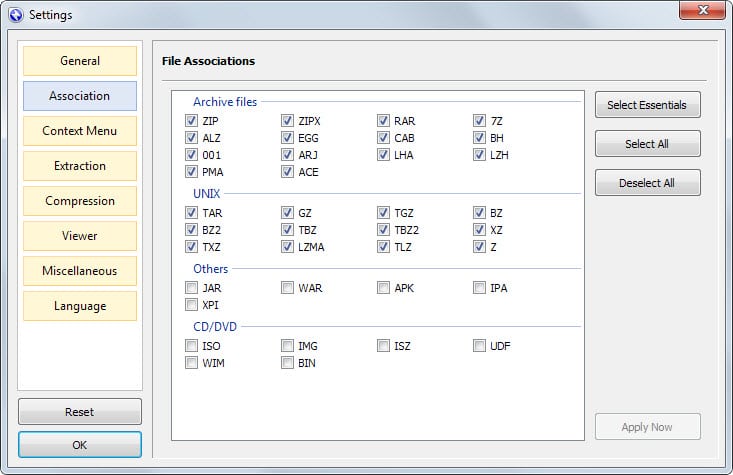
The application is available as a portable version or setup for Windows as well as a (paid) version for Apple's Macintosh system. If you install the program on Windows, the file association settings page is opened right afterwards. Here you can associate archive file formats to open with the application.
Doing so will replace the icon of associated archives with the Bandizip icon. It also allows you to double-click the archive to run an action configured in Bandizip on it.


archive file formats association


One interesting feature of the application is the ability to change what happens when you double-click archives. The default action is to open Bandizip to display the contents of the archive.
You can change that however so that the archive gets extracted automatically for instance instead.
As far as customizations go, there are quite a few that make life easier for you. Here is a short list:
  • Configure what is displayed in the context menu and what is not.
  • Option to open the folder of an extracted archive after the operation completes.
  • Handling of long path names that exceed 260 characters.
  • Command line support.
When it comes to creating archives, Bandizip may not support a massive amount of options but the important ones are there.  It can create eight different archive types including zip and 7z, split up volumes, add password protection, self-extracting archives and change compression levels.

Closing Words

I have used 7-Zip for a long time but lack of updates and support for new file formats have forced me to find a replacement for the application. Bandizip ticks all the right boxes at the time of writing especially when it comes to extracting or browsing archives.

Source: http://www.ghacks.net/2014/06/24/bandizip-probably-best-free-file-archiver-right-now/

December 11, 2015

Meet Excel 2016: 9 of its best new features (PCWORLD)

Meet Excel 2016: 9 of its best new features, from databases to handwriting tools

The new database features alone justify upgrading, but that's just the beginning.


microsoft excel logo primary
Credit: Image: Rob Schultz

I’ve just started exploring Excel 2016. As one of the tentpole applications for the new Office 2016, it has a raft of new features for lucky upgraders. Take a closer look with me and see what you think.

1. Major database enhancements

The database enhancements alone—which include merging some of the previous Add-On programs such as Power Pivot and Power Query—more than justify the upgrade. You'll find options for Power Queries; Data Models; Reports; Pivot Tables; One-Click Forecasting; and some new, one-button workbook sharing through Power BI for creating and using interactive reports and dashboards.
excel-2016-power-query-options

2. Quick analysis tools

Quick analysis tools are a real timesaver, nudging you in the right direction with your data. After you've completed your spreadsheet or table, select the entire range. Note the lightning worksheet icon at the bottom right corner of the range: Click this icon, and a popup menu appears that displays a half-dozen options for what to do with this data.
excel-2016-quick-analysis-button
Note that each icon is a button/link to a submenu that provides more options (the selected icon turns dark green and bold).
excel-2016-quick-analysis-tool-submenu

3. New charts

Excel has six new charts to show off to your clients and colleagues. It’s still an easy process to create them, too: Just highlight the database table, select Insert > Recommended Charts, then choose one from the pictured samples.
Insert Recommended Charts
Or, if you’re not inclined to use one of the recommendations, click the All Charts tab, choose a category from the list, then select one of the designs from the pictured charts in that category.
We'll delve deeper into the new charts in an upcoming column, but here are two to whet your appetite:
Pareto sorts the bars by highest first and shows which bars have the biggest impact or highest return. Use this chart data to decide where to assign your resources.
Insert new chart Pareto
Waterfall (aka ‘flying brick’ chart) provides a visual method for viewing a series of positive and negative data, such as monthly cash flows. Because the bars seem to hover between the start and end columns, it looks sort of like a waterfall, hence the name.
Insert new chart Waterfall

4. New templates

Excel’s new templates come with sample data and charts, plus hands-on exercises that teach you how to use each template.
New template Cashflow—click Let’s Get Started button
08 New template Cashflow—click the Let’s Get Started button.
For example, in the My Cashflow template, Excel encourages you to try the Excel Data Model to manage your cash flow. Click the Let’s Get Started button, and Excel displays the My Cashflow charts. Click the buttons 2013, 2014, or 2015 to see the chart data change by year.
New template CashFlow chart
09 New template CashFlow chart
If you click the Go button, you can add some new data to the Sample Data spreadsheet, then watch the charts change based on your new input. Once you get the hang of it, just replace Excel’s sample data with some real data of your own and Excel does the rest. Other new templates include Stock Analysis and My Calendar.

5. 3D / Power Maps

These mapping tools were an add-in program in previous versions, but they're now included in 2016. You can compare data such as temperatures, or rainfall, or populations of a given area over a specified time, rendered in three-dimensional images.
3D Maps/Power Maps
You can map data (plot millions of rows of information visually on Bing maps), discover how data changes over time and space, and create and share stories (called Video Tours) about the information you’ve collected. Stay tuned for a complete review on this excellent new feature in Excel 2016.

6. Easier collaboration and sharing

Real-time collaboration is finally here. Share ideas, data, queries, reports; and co-author worksheets, charts, graphs, Pivot Tables, databases, and more.
Click the Share button in the top right corner. When the Share panel opens, click the Save to Cloud button. The Backstage menu opens and displays the Save As screen. Choose the option that fits your situation—OneDrive, SharePoint, or another online location. Select the appropriate folder and click the Save button.
Once saved, the document reappears with the Share panel open. In the Invite People field, click the open book icon and select colleagues from your address book in Outlook. Set permissions and notifications, then click the Share button to send the document links to your designated colleagues.
Real-time collaboration and sharing

7. Smart Lookup

This feature (available in most of the Office 2016 programs) is like having the Internet on speed dial. Also called “Insights” from Bing, the information hails from various resources such as Wikipedia, the Oxford dictionary, Bing image search, and Bing Snapshot.
Just place your cursor on any word or highlight any phrase on your spreadsheet and right-click. Select Smart Lookup from the dropdown list. The “Insights” panel opens on the right and displays information and images about the subject you highlighted.
Smart Lookup features Bing Insights

8. Tell Me

Located on the right side of the Ribbon menu after the last tab, this feature provides a search box with a light bulb that says “Tell me what you want to do.” It’s like your personal valet: Ask it a question, command it to do something, or select one of the Recently Used queries, and it obeys.
Tell Me how to sort and filter data
Just click the Tell Me box and type your question. A list box drops down with your current request on top; followed by alternate choices (if there are any); followed by the most Recently Used queries; followed by an option to select and use the official Help menus; followed by the Smart Lookup feature, which adds the knowledge of the Internet to help you find the right answer.
Tell Me—show me what to do next

9. Ink Equations

This new feature converts your handwritten equations (or mathematical problems) to text, so you can insert them into your documents. You can use whatever tool works best for you—the mouse, a digital or light pen, or even your fingers—to write the math equations/problems.
Ink Equations submenu
Just select Insert > Symbols > Equation, then click Ink Equation from the drop-down menu. A Preview chalkboard box appears with writing tools displayed along the bottom.
Handwrite a math problem or an equation
That’s all for the big stuff, and Excel has a lot more surprises for its fans. Stay tuned for deeper dives into more of the great features in Excel 2016.


Source: http://www.pcworld.com/article/3010614/software-productivity/meet-excel-2016-9-of-its-best-new-features-from-databases-to-handwriting-tools.html#tk.rss_howto


JD Sartain journalist

JD Sartain is a technology journalist from Boston. She writes a monthly "Case Studies" column for CIO, a weekly "Max Productivity" column for PCWorld, and she's been a regular freelance writer at Network World for nine years.
More by

December 1, 2015

How to Set a Task Reminder in Outlook 2013

You may want to set a reminder in Outlook 2013 to help you stay on top of your task assignments. Reminders pop up at the time you specify to let you know it’s time to pay attention to a task. You can also enter your own custom reminder text.
Set your reminder to occur before the task’s actual due date to give yourself some time to work on it. For example, set a budget’s reminder for two weeks prior to the date.
  1. In the Tasks area of Outlook, double-click a task you have created.
    It opens in its own window.
  2. Select the Reminder check box under the due date.
  3. Today’s date may already appear in the Date box. If it doesn’t, open the Date drop-down list and select today’s date.
  4. Open the Time drop-down list and select a time that is 3 minutes from now. If the exact time isn’t one of the choices, close the drop-down list, click in the Time box, and manually type the time.
    See the figure.
    A default-assigned sound plays when the reminder occurs. To change the sound, you can click the Sound button (it looks like a speaker) and browse for a different sound file.
    image0.jpg
  5. Click the Save & Close button.
  6. Wait 3 minutes for the reminder box to pop up.
    See the figure.
    image1.jpg
  7. Click the Dismiss button.
    The reminder is dismissed.
    You could have clicked Snooze instead to make it disappear temporarily but pop up again later.
You may want to set a reminder in Outlook 2013 to help you stay on top of your task assignments. Reminders pop up at the time you specify to let you know it’s time to pay attention to a task. You can also enter your own custom reminder text.
Set your reminder to occur before the task’s actual due date to give yourself some time to work on it. For example, set a budget’s reminder for two weeks prior to the date.
  1. In the Tasks area of Outlook, double-click a task you have created.
    It opens in its own window.
  2. Select the Reminder check box under the due date.
  3. Today’s date may already appear in the Date box. If it doesn’t, open the Date drop-down list and select today’s date.
  4. Open the Time drop-down list and select a time that is 3 minutes from now. If the exact time isn’t one of the choices, close the drop-down list, click in the Time box, and manually type the time.
    See the figure.
    A default-assigned sound plays when the reminder occurs. To change the sound, you can click the Sound button (it looks like a speaker) and browse for a different sound file.
    image0.jpg
  5. Click the Save & Close button.
  6. Wait 3 minutes for the reminder box to pop up.
    See the figure.
    image1.jpg
  7. Click the Dismiss button.
    The reminder is dismissed.
    You could have clicked Snooze instead to make it disappear temporarily but pop up again later.