September 18, 2014

Send Text Messages From Your PC: The Best Services Compared

Sending text messages is one of the most used functions of smartphones, so it’s something you likely do dozens of times a day — if not more. However, if you’re somebody that works at a desk for long periods of time, it’s jarring to constantly switch between your computer and your phone.

If you use a dedicated messenger like WhatsApp, you could run it on your desktop using an Android emulator, but this is a complicated setup and would likely be choppy. If you’re not up for this, there are some awesome solutions that allow you to send actual text messages from your phone on your PC without the hassle of emulation. We’ve covered many of these services individually in the past, but this time we’re going to test the apps and decide which is your best option for texting from your computer.
Note that these apps use your existing phone number to send messages; if you’re looking to send SMS messages for free online check out our list of ways to do so.

MightyText

First up is MightyText, a service that we’ve reviewed before and that you’ve likely heard of. Setting it up couldn’t be simpler; just grab the app from Google Play, and when you open it, you’ll need to choose the Google account that’s tied to your phone. Grant the app the permissions it needs on the next screen, and the phone portion is done.

01 MightyText Setup1   Send Text Messages From Your PC: The Best Services Compared

Now, you have a choice. You can use the MightyText web app in any browser you like right away — all you have to do is sign in with the same Google account. This is the barebones option, however. You won’t receive notifications for new texts outside of a bubble on the page.
If you don’t want to install any extensions, or you work in an area where you can have your phone ringer turned up and be notified that way, this will work for you. You’ll see new text messages and even incoming calls.

02 MightyText Interface   Send Text Messages From Your PC: The Best Services Compared

If you want on-screen pop-ups whenever your browser is open, though, you’ll need to have a compatible extension installed. Aside from showing new messages, the extension allows you to easily text a link to the page you’re viewing, open the page on your phone, or jump right to MightyText. You can also send messages right from the extension, so all but the most causal users will probably want to have it installed.

03 MightyText Extension Sending   Send Text Messages From Your PC: The Best Services Compared
If you’re using Safari or Opera, the webpage is your only option, as those browsers don’t support notifications right now. Chrome and Firefox users can install the MightyText extension, but Firefox users will have to install a separate add-on first as a workaround. Internet Explorer’s fans will have to monkey with some settings, as well.

Head to MightyText’s app page for links to all these extensions and instructions.
Aside from the typical browser extensions, you can also install the tablet app to take advantage of the service from your Android tablet. Finally, MightyText also provides a Gmail/Facebook Chrome extension, which lets you text right from your inbox or Facebook page.
Frankly, though, this particular extension isn’t that useful; email is distracting enough, and it’s no secret that Facebook is an archenemy of productivity, so they’re the last places you want to be when replying to a text message. Stick to your preferred browser’s solution.
Now that we’re past the setup, let’s examine how MightyText actually handles. You’ll be pleased to know that it’s a slick solution; the website allows you to see recently contacted people on the side and a full view of one conversation in the middle.

05 MightyText Message   Send Text Messages From Your PC: The Best Services Compared

If you’re more of a power user, texting many people at once, you can switch the layout to Power View using the gray icon at the top. This lets you see and work with six threads; you’ll feel like an airplane pilot with all the controls!

06 MightyText Power View   Send Text Messages From Your PC: The Best Services Compared

MightyText’s functions are numerous and easy to use. Since it syncs with your Google account, you don’t have to worry about any cables or being on the same WiFi network as your PC. Your phone can be in another house and MightyText will work fine — as long as your phone is on and connected to a data network.

Aside from texting, you can also use it to start a call from your phone (which is kind of weird), view recent attachments from MMS you’ve received, view your contacts, and check out your apps. None of these are essential for the app to function or especially helpful, but it’s nice to have an all-in-one web interface for managing your phone.

07 MightyText Dialer   Send Text Messages From Your PC: The Best Services Compared


There are a few settings you might want to tweak, but many of them are only open to users of the Pro service. For $5 per month or $40 per year, you’ll get access to the premium features of MightyText, including themes, message scheduling, the ability to store messages indefinitely, and contact lists. It’s a bit pricey for what you get, so only those who use the service on a daily basis need apply.
Heading to the Settings tab on the left of the page will allow you to tweak MightyText. You can choose how long they’ll store your messages and whether to send group messages as MMS or not. One noteworthy setting is the ability to pick whether the Enter key sends the message or not — if you typically send long messages or mistype, it’s a good idea to force yourself to click “Send.”
The only other setting you may want to take a look at is the privacy — when this is enabled, new message pop-ups only show the name of the sender and not the body text. If you’d like to change how long the pop-up sticks around, you can do that here too.


09 MightyText Settings   Send Text Messages From Your PC: The Best Services Compared
The Android app hasn’t gotten much attention thus far, and that’s because it’s really just a required part of MightyText’s functionality. If you open it up, you get a bland screen; it really only serves to give you some options and the ability to unlink your device if you need to.
MightyText can upload your device’s photos and videos to its web app, but you probably already have Dropbox or a similar service do this, so it’s not necessary. MightyText can also sync your phone notifications to your PC, but that’s branching out further than the scope of this review.

10 MightyText Phone Settings   Send Text Messages From Your PC: The Best Services Compared

Overall, MightyText is a solid option for your PC texting needs. It’s easy to set up and works wherever your phone is, and while it has a lot of features, it’s clean and never feels bloated. Whether you choose to be notified with the browser extensions or just use it to text occasionally when you’re focused on your computer, you really can’t go wrong with MightyText.

Pushbullet

Pushbullet is an awesome service that allows your Android and PC to communicate effortlessly. We’ve explained all it can do previously, but let’s look at its text-messaging abilities in comparison to the others.
To set up Pushbullet for texting you’ll need to install its Android app, and your choice of its Chrome extension, Firefox add-on, or Windows program. After you install the Android app, you’ll need to enable its notification mirroring service. The app will show you this after you open it and sign in to your Google account, but if you ever need it again head to Settings > Security > Notification Access and check the Pushbullet box.

11 Pushbullet Android Notification Mirror Setting   Send Text Messages From Your PC: The Best Services Compared

Once you’ve done this on Android, install your browser extension and sign in using the same Google account, just like MightyText. The ability to respond to text messages comes whenever Pushbullet notifies you of a text from your default SMS app; you’ll see an option to reply on the bubble.

12 Pushbullet Android SMS Example   Send Text Messages From Your PC: The Best Services Compared

A rudimentary pop-up box allows you to compose a reply. There’s no support for attaching images, emoji, or GIFs like in MightyText.

13 Pushbullet Reply   Send Text Messages From Your PC: The Best Services Compared
This is the extent of what Pushbullet can do with text messages. Don’t assume that it’s not worth your time; on the contrary, it’s a powerful tool that can do much more than just replying to SMS, including sharing files between devices and dismissing Android notifications.
If you use multiple devices, it’s an invaluable service, but since it can’t even compose a new message on PC, it’s not your best choice in this contest. MightyText is superior in every way to Pushbullet for PC texting.

AirDroid

AirDroid is another time-honored service that allows you to use your phone on your bigger-screen desktop. We’ve covered it previously, so you can find a full rundown of its features there. Like Pushbullet, we’ll focus only on its texting capabilities for this comparison.
To get started with AirDroid, install its Android app and open it up. You’ll be asked to create an account, which is a strongly recommended. AirDroid has no installations on your computer, so just head to the web portal when you’re ready. The easiest way to pair your Android with the web interface is to use a QR code, which the app will prompt you to do. If you don’t want to do it this way, just use your account login.

14 AirDroid Welcome   Send Text Messages From Your PC: The Best Services Compared

Once you’ve signed in, you’ll get a crisp desktop-looking interface, seen below.

15 AirDroid Desktop   Send Text Messages From Your PC: The Best Services Compared

From here, AirDroid allows you to manage your device’s files, music, contacts, and even its clipboard. You can also install apps from AirDroid if you like.
It’s a slick service that lets you do nearly anything you need with your phone. Of course, we’re interested in its messaging capabilities for now. When you click the Messages icon, it opens a window within the browser window.

16 AirDroid Messages   Send Text Messages From Your PC: The Best Services Compared

The messages window works as expected. You can easily switch between conversations and attaching files and emoji is supported. A search box is also available in the upper left that will scan the body of your messages — a great feature if you need to recall something but don’t remember its recipient.

17 AirDroid Message Search   Send Text Messages From Your PC: The Best Services Compared

Also appreciated is the option to switch between “Enter” and “Ctrl + Enter” for sending a message — MighyText requires you to click “Send” with your mouse if you choose not to make Enter send. When you get a new message, you’ll receive a pop-up in the corner of the AirDroid window, but there’s no way to enable notifications anywhere like MightyText has. If you’re not in the window when you receive a message, you might miss it.

18 AirDroid Popup   Send Text Messages From Your PC: The Best Services Compared

AirDroid features a premium service for $2 per month or $20 per year, but it doesn’t offer many upgrades in the texting realm. The only new feature you’ll enjoy if you use AirDroid exclusively for texting is the ability to add more devices to your account, so if you have more than one phone this may come in handy. Otherwise, the free service will suffice.

AirDroid premium features   Send Text Messages From Your PC: The Best Services Compared

The phone side of AirDroid doesn’t offer much use to you. Besides providing the link to connect to the web interface, it includes a built-in task manager (which you shouldn’t use) and file manager if you don’t already have another one installed for some reason. Other than that, the app only offers some “recommended” junk apps and a few settings that aren’t crucial for its operation.

20 AirDroid Junk Apps   Send Text Messages From Your PC: The Best Services Compared

Overall, AirDroid is another solid option, and while it offers more than MightyText, it still does messaging well. However, I had problems with it on a university network, so be advised that if you’re in a business or university environment that has restrictions on Internet usage, you may need to choose another option.
While AirDroid has message search, MightyText’s ability to show you notifications of new messages anywhere — not just as a pop-up in its own tab — and its ability to work on any network (I have no problems using it at university) makes it more useful. Therefore, MightyText is still in the lead at this point.

SnapPea

SnapPea is another full-featured client that seeks to be a sort of iTunes for Android. You’re used to this process by now: snag the Android app to get started. You can choose to use SnapPea from the its web interface or its Windows program.

21 SnapPea Choice   Send Text Messages From Your PC: The Best Services Compared

If you choose the Web option, you’ll need to sign into the app with your Google account, and then do the same online. For Windows, install the program, launch it, and then link your phone over WiFi with a passcode or via a USB cable. You’ll need to enable USB debugging if you want to use a cord — the app will show you how to do this.
Once you’re set up, you’ll be greeted with the main interface of SnapPea.

22 SnapPea Interface   Send Text Messages From Your PC: The Best Services Compared

Like AirDroid, it’s more of an all-in-one management interface so it handles more than just texts. You can browse for new apps, watch your phone’s videos, and even back up your device with SnapPea.

Its messaging capabilities were inferior to all other previous contenders in my testing. I sent several messages to my phone using Google Voice and was not notified of any of them. Worse yet, even after several minutes they didn’t show up in the messaging section of SnapPea — as if I never sent them at all.

23 SnapPea Texting   Send Text Messages From Your PC: The Best Services Compared

Perhaps there’s some sort of delay, but I was using the USB connection (since I had connection issues yet again) so there shouldn’t have been any problems. The only option SnapPea gives you in terms of messaging is to enable notifications for new SMS or not, so it’s a bit lacking. I wasn’t able to test the web interface, but it’s similar to the Windows client that it shouldn’t make a difference.
Overall, SnapPea is unsatisfactory. It has the unique feature of being able to use a USB cable if you’re having connection issues, as well as a choice between PC clients, but what’s the use if it doesn’t work as it should? AirDroid even has a prettier interface; SnapPea falls short in many ways.

EndlessJabber

The final challenger is EndlessJabber, a lesser-known client. It has an Android app and a web service, along with an extension for Chrome, so it fits right in with the gang. The developer linked to a Firefox extension in the app’s description, but it’s now defunct.
Once you open the app, you’ll have to choose the right account and if you want to sync old messages. The main interface is like all the others — you won’t find much except a few options and instructions on how to launch the web app. EndlessJabber also supports texting from tablets through its website.

24 Jabber Welcome   Send Text Messages From Your PC: The Best Services Compared

The home screen is clean and similar to MightyText; you’ll find recent threads on the left, along with the other features of the app such as viewing your contacts and recent MMS photos. It claims to work best with EvolveSMS, but any app will do.
Though I hadn’t heard of EndlessJabber before, it was a pleasant surprise after SnapPea. Everything you expect is in the app, including attaching pictures, and it’s snappy. A Statistics screen lets you see who your most-contacted friends are as well as the number of messages sent per day. This is a neat feature if you like to keep track of your smartphone usage.

25 Jabber Statistics   Send Text Messages From Your PC: The Best Services Compared

As expected, this app features a Pro subscription. For $2 per month, you’ll be allowed to access all the app’s features, including Jabber Mode, which sends messages faster than usual.
Other features include searching messages, scheduling, deeper statistics, and removing ads. It’s a reasonable price if you’re a power user of the service.

26 Jabber Pro   Send Text Messages From Your PC: The Best Services Compared
The Chrome extension functions like MightyText’s, except that you can’t compose new texts from it. You can choose what parts of the notification pop-up to enable, and clicking it will open a windows with EndlessJabber to respond to it.
EndlessJabber is currently running a Kickstarter to enrich its app. The goal has already been passed, but you can check it out if you’d like to help them become even better.

And The Winner Is…

After examining each app thoroughly, here is their rank them from best to worst:
  1. MightyText
  2. EndlessJabber
  3. AirDroid
  4. SnapPea
  5. Pushbullet
MightyText wins due to its dead-simple interface and setup, variety of extensions and apps, and notification system. Its only shortcomings are the lack of a search feature and an expensive Pro plan.

EndlessJabber is a close second. It’s almost a twin to MightyText, but falls behind because its lacks an interactive pop-up for each contact, a Power view, and a working Firefox extension. It’s still an excellent choice, though, and should become even better after its Kickstarter ends.

AirDroid is a great service; it does too much to focus on just messaging, however. There’s nothing wrong with its messaging functions, and if you need a full-fledged suite then it’s your best choice. But its limited notifications and potentially problematic login system keep it from being the winner.

SnapPea was a disappointment. I’m not sure why it barely functioned, but an app can have all the great features it wants — if they don’t work, it’s useless. This was the impression that SnapPea gave. If you hate AirDroid but want a full client, give it a try, but for most the former is far superior.

Pushbullet comes in last this time, but it really isn’t meant to be compared to any of the above. If you only want to quickly reply to incoming messages, it will serve you just fine. For others it simply doesn’t offer enough to be considered, though you still should check out the service.
Need a way to text from your desktop without an existing phone number? We’ve reviewed Pinger Desktop, a great way to do so.

Did we miss any other options? Which PC texting service do you use? Leave a comment and let us know!

Source: http://www.makeuseof.com/tag/send-text-messages-pc-best-services-compared/

September 4, 2014

Windows 8.1 vs. Windows 7 – Which is best for you?


Analysis & Insight 15 Aug, 2014 Kyle Nazario, Caroline Preece


As Windows 9 draws nearer and Microsoft distances itself from older OS, we look at the best option for your PC

Support for Windows XP came to an end in April 2014, and Microsoft has set a date of January 2015 for the withdrawal of mainstream Windows 7 support. This doesn’t mean Windows 8’s predecessor is out of the game, however, and remains a popular option for consumers and business users alike.
In fact, recent market share statistics revealed that users choosing to move on from Windows XP are actually opting for Windows 7 rather than Windows 8 or 8.1, with Microsoft’s latest operating system not being welcomed as quickly as had been hoped. Until Microsoft stops support for Windows 7, people will continue to choose it over the alternative.
What, then, is the best option for your PC? Following XP’s demise, the upgrade candidates were Windows 7 and Windows 8.1, and we have broken down the key features to help you decide which is the better choice (fast forward to our verdict).


1. Boot time

Windows 8 machines only take 10-15 seconds to boot up, with some switching on even faster depending on the SSD. Gone are the days when you have to distract yourself by going to make a cup of tea while your system wakes up.


But how have we gotten to this point? Microsoft engineers combined the hibernation and shutdown modes into one for Windows 8, and Windows 8.1 uses a hybrid boot mode that allows the PC to start up much more quickly. The kernel lets it hibernate instead of shutting down completely, and the use of cores makes it possible to start-up in seconds.
Winner: Windows 8 – The faster the machine boots up, the more time you are able to spend on doing more productive things. By the end of the multiple year lifespan of your PC, this can add up to hours of reclaimed time.


2. Enterprise features

Windows 8.1 has more enterprise features than Windows 7, with Windows to Go featured on the Enterprise edition allowing users to start a personalised version of Windows from a USB or any other machine running Windows 7 or 8. It also means that the Windows Store is enabled by default, allowing users to access apps across multiple machines.
IT admins can virtually run Windows without any third-party software. Adding in the optional Hyper-V support for your copy of 8.1 allows you to connect to a server.
Windows 8.1 also has better support for managing mobile devices, with tap-to-print support via NFC and enhanced biometrics, malware resistance and encryption also included.
But IT departments around the world have given Windows 8.1 the cold shoulder in favour of its older siblings. In fact, HP told IT Pro that Windows 7 is the most popular choice for companies upgrading from XP.
“[Businesses] are ignoring Windows 8,” said HP project manager Jeff Wood.
What enterprise customers prize over everything is stability, and Windows 7 has time, familiarity, extensive testing and total peripheral compatibility on its side.
Those upgrading from Windows 8 to 8.1 have also run into problems, with users complaining the update broke simple things such as the ability to print.
Winner: Draw – Although Windows 8 has more enterprise features as a default, Windows 7 has the benefit of being tried and tested. Then again, further updates for 8.1 have fixed many of the biggest problems inherent to previous iterations of the OS.


3. Performance

Microsoft used Windows 8 as a guise under which to revamp the engine, and the results is a much faster system that consumes fewer resources than before. This makes it a better choice than Windows 7 for low-end PCs.
The redesign opts for simple colours and fewer visual effects, also contributing to the increased speed due to resources saved compared to the Aero Glass effect of Windows 7.
Overall, Windows 8.1 is better for everyday use and benchmarks than Windows 7, and extensive testing has revealed improvements such as PCMark Vantage and Sunspider. The difference, however, are minimal.
Winner: Windows 8 – It’s faster and less resource intensive.


4. Interface

The front-facing user interface that characterises Windows 8 has been a huge talking point since it was revealed, and there are several reasons for that. For some, the radical redesign has always felt more like two operating systems meshed together, and it has become the most discussed element of Windows’ latest operating system.
When switching on the computer, users are greeted with the now-familiar Start screen – a page of apps and live tiles. This Metro interface includes everything in the form of apps, including the classic desktop mode that has proven to be the preferred view for so many. In addition, apps like IE 11 are great for touch screen web browsing, but not much else.
But even the desktop looks a little different on Windows 8, despite the fact that Windows 8.1 did feature the long-awaited return of the start button. This doesn’t, however, come with the return of the Start menu (thankfully confirmed for Windows 9 in 2015), instead simply switching users between screens.


To say the revised interface has had a polarising effect is an understatement, and there is no shortage of people who have complained about Metro since it was released. Among their arguments – an interface designed for touch doesn’t make sense on a desktop computer.
Windows 8.1 has gone some way towards fixing the problem, however, as users can now choose to avoid Metro entirely and boot directly to desktop. Spend a little time setting up the OS, and you can get a comparable, if not slightly better, experience.
There are real UI improvements with 8.1. You can add Start bars to dual monitors with separate wallpapers on each. There’s also a fast universal search tight there on the Start screen, which you can access by hitting the Windows key and typing to search local files, OneDrive files, apps, settings and the internet. You can even browse OneDrive files through File Explorer (aka Windows Explorer).
Winner: Windows 7 – The classic, familiar desktop remains popular for a reason, and thus wins the day. Windows 8 simply tries to do too much too quickly and, even though the 8.1 update allows users the option of booting straight to desktop, Metro still has a nasty habit of popping up when it’s not welcome.


5. Security

Security is a massive issue for both individual users and businesses and, as the most popular desktop operating system, Windows is sadly the primary target for malware and viruses.
Windows 7 and Windows 8.1 share many security features, both of them using BitLocker Drive encryption, but 8.1 goes one step further by enabling them by default. You can always download Microsoft Security Essentials for Windows 7, and it’s free, but its younger brother has it already built into the system.
Secure booting on UEFI systems is also included with 8.1, making it much harder for rogue malware to infect the bootloader. PCs running Windows 8.1 can also automatically connect to VPNs.
Winner: Windows 8 – The latest version of Windows smartly has more security features set as default.


6. Task Manager

The Task Manager for Windows 8 displays more information in a visual form, with coloured charts for heat, CPU, memory, disk, Ethernet and wireless consumption. There’s even a breakdown of how each program effects boot time.
Winner: Windows 8 – Who doesn’t want more informative graphs and charts?


7. USB 3.0 support

Windows 8.1 sports OS-level support for USB 3 devices. Instead of relying on manufacturers or updates to add support for devices, any Windows 8-enabled device can now enjoy faster speeds of up to 5 Gbit/s.


Winner: Windows 8 – Getting faster transfer speeds is always a positive thing.


8. Data transfers done right

Copying and moving data on Windows 7 was handled in the wrong way. When encountering a name collision between two files, for example, the transfer was interrupted with a prompt asking how to proceed, stacking individual windows for each transfer.


This has thankfully been cleaned up with Windows 8, putting all transfers into one window and pushing name collision dialogues to the end of the process. Windows even tried to make the time estimations on transfer more accurate.
Winner: Windows 8 – Not only does it transfer data faster, but Windows 8 ensures less interruptions and more accurate time estimations.


9. Daemon Tools is obsolete

Windows 8 finally added support for native mounting of ISO, IMG and VHD disk images. We can now access the content of virtual disk files and write them to physical CDs without any third-party programs like the now-obsolete Daemon Tools.
Winner: Windows 8 - Finally helps to put the nail in the coffin of physical media.


10. 3D printing support

Microsoft added native support for 3D printing in Windows 8.1, allowing you send files to a MakerBot Printer straight from the Charms bar.


Winner: Windows 8 - It’s not a necessity yet but, in the future, the ability to print 3D prototypes could be invaluable to businesses.

Verdict - Which version of Windows is right for you?

Windows 8 has received a lot of flack for the Metro interface, but this shouldn’t overshadow the number of improvements Microsoft has made to the OS since.
In this way, think of Windows 8.1 as just Windows 7 with four additional years of development. The downside is that updates can break the system simple because it isn’t as tried and tested as its predecessor, but this changes with time.
The latest OS has a faster boot time and better performance along with a superior task manager and security features. It also has native support for USB 3, 3D, ISO, IMG and VHD.
However, Windows 7 did manage to win in the interface category, also salvaging a draw when it came to judging enterprise features.


If you’re buying a Windows machine for personal use, then, it seems that Windows 8.1 is the way to go – as long as you ignore Metro for productivity and use it only for web browsing.
Businesses looking to deploy machines will most likely want the familiarity and stability of Windows 7, however, and this is something OEMs such as Dell and HP have recognised – now selling Windows 8 machines to enterprises with the option to downgrade to Windows 7 if they desire.

This article was first published on 26/03/14 and has been updated multiple times (most recently on 15/08/14) to reflect new information that has become available since its original publication.

6 powerful Google Drive features you're probably not using


Google Drive apps are loved for their simplicity and ease of use, but don’t let that fool you. There’s a whole lot of power locked up in these web apps. And while we’d never put the suite on a par with Microsoft Office, there are some impressive features in Docs, Sheets, and Slides that you’ve likely overlooked.
We’ve highlighted some of the newest features and hidden gems that can help save you time and anguish and create documents that are sure to impress your professors, colleagues, and most importantly, your boss.

Docs has research power

In our mostly paperless world text is interactive, and readers often expect links to connect to related articles. Citing your sources correctly in an article or academic paper is imperative to provide a research trail and give credit to the authors whose work you reference. Google Docs has a couple of tools to simplify this otherwise cumbersome task. 

Research Tool

The Research Tool adds a quick citation system on top of Google’s search prowess. To launch the Research tool, click Tools > Research. You can also use keyboard shortcuts: Ctrl-⌘-Shift-l on a Mac and Ctrl-Alt-Shift-I on a PC.
The tool is blank when first opened, but it will begin to auto-suggest research topics based on what you write.
docs research tool
The Research Tool can be an excellent resource for writing in Google Docs.
The tool has seven search options: Everything (which conducts a Google search), Images, Scholar (which filters by academic resources), Quotes, Dictionary, Personal, and Tables.
To search, click inside the box, select your search option and start typing. When you hover over a selection, you’ll see three choices: preview, cite, and link. The cite feature can make inserting MLA, APA, or Chicago style reference citations a walk in the park. Select the style of citation and Docs will insert a superscript numeral and add the note to the bottom of the page. (You’ll get the most accurate preview if you do this in Print layout.)
This feature doesn’t replace a proper “Works Cited” section required of most papers, but it will give you the content in the right format and make the in-text citation process significantly smoother.

Power Linking

Power Linking is even faster than using the Research Tool if you need to add a lot of links to an article or other document. To use it, highlight the target text and click Control-K or ⌘-K. The search menu will then auto-suggest a link. If one of the suggestions is what you are looking for, just click it, select Insert and you’re done. If your initial search doesn’t yield what you need, change the text in the search box to more specifically match your target. 

Conquer surveys and data with Sheets

Unless you’re an Excel power user, Google’s Sheets is probably full-featured enough to handle most spreadsheet needs. The app also has some pretty cool capabilities when it comes to making sense of data.

Creating charts in Sheets

You can very quickly create a chart from a Google Sheet and make yourself look like a data whiz.
sheets chart
Make sense of data by turning into a chart or graph.
To do so, select the Chart icon on the menu bar or choose Insert > Chart. This will bring up the chart editor box. In the Start tab you can then edit the range of cells and choose from a variety of layout settings. It also suggests some recommended charts based on the type of data you have. If you don’t like any of those, select from the other options by clicking More. Click Insert to put the chart in your spreadsheet.

Map It

Another powerful feature that flies under the radar is the ability for Sheets to create a map out of location-based data. For example, if you have population data or other kinds of results from various countries, you can create a chart that will visually represent this. The data will need to include specific locations in the cells in order for the command to work.
To begin, click the Charts tab and select Map. 
sheets map
Transform data from a Google Sheet into a map.

Next, choose the GeoMap option. In the Customize tab, you can change the colors that appear on your map. There are many different kinds of charts and methods for representing trending data in Sheets. Once you have these two features down, you should be able to experiment and master any of the different options in this feature.

Slides solves the groupwork dilemma

Google Slides doesn’t have the template offerings of PowerPoint or the visual elegance of Keynote, but it will make your life significantly easier when you’re saddled with that group project. You can collaborate on a Google Slide the same way you would with Docs or Sheets.
You can also upload a PowerPoint file, convert it to a Slides presentation, and work away—Drive does a very good job of keeping the look and feel of the deck consistent. To upload a PowerPoint presentation, locate the file on your computer and drag it into the Drive interface. Select the box that converts the file to the proper Google Drive format.
google sites
Embed a Google Slide directly into a Google Site.
Once you have your Slides presentation started, invite others to view and/or edit the presentation.
You can even embed a presentation on a Google Site. In Sites, click the select Insert > Drive > Presentation. Anyone who navigates to your site can then click through the slides directly from the webpage.
To insert the presentation into your personal or company website, click File > Publish to the web... In the dialog box that pops up, copy the HTML from the box labeled ‘Embed code’ and paste it into the HTML of your website. Click OK when you’re done.
This feature also works with other Google Drive files, allowing you to quickly display any of your work to others.

Use Hangouts for face-to-face collaboration

Google’s Hangouts shouldn’t be overlooked when it comes to working together on a project. Google built Apps-specific widgets into Hangouts, so a team can participate in a video chat while editing a file.
To do this, launch a video hangout and click the Drive icon on the left-side of the screen. Then you and any of the other members of the hangout will be able to discuss specific contents of the file in real-time. 
This screen-sharing capability is an excellent way to bring extra clarity to an issue that may be vexing a team or may make discussion easier face-to-face.
Hangouts also works across desktop and mobile, so you can reach out to a team member if they have the Hangouts app installed on their phone or tablet.

Source: http://www.pcworld.com/article/2466790/6-powerful-google-apps-productivity-features.html#tk.nl_pwr

August 24, 2014

Inexpensive Windows PCs hit the market with help from Microsoft

PC makers are selling laptops with Microsoft's royalty-free Windows 8.1 With Bing OS starting at $249

Computerworld - Microsoft is helping hardware makers build low-priced Windows PCs to combat Chromebooks, and the early results of that effort are hitting the market.
Hewlett-Packard, Dell and Lenovo are selling laptops priced less than $250 that run on Windows 8.1 With Bing, a royalty-free version of the company's flagship operating system. Windows 8.1 With Bing is the same as Windows 8.1, but it has Bing as the default search engine in Internet Explorer.

Microsoft is using Windows 8.1 With Bing, which was unveiled in May, to spread Windows to more low-cost PCs and tablets. It's also an attempt to take on Google's free Chrome OS, which is used in Chromebooks, the inexpensive and lightweight laptops that are growing in popularity among the Web-based computing audience.

The first PCs featuring Windows 8.1 With Bing were shown at Computex in June. The cheapest is a Lenovo desktop model that costs $225. Laptops start at $249. Microsoft has promised that laptop prices will fall to $199 with HP's Stream 14 model, which has not been unveiled -- though information about it has leaked out.

Some Acer Chromebooks sell for less than $200, but HP, Dell and Lenovo are selling Windows laptops that are priced lower than their Chromebooks. The laptops have basic processors and specifications, much like comparable Chromebooks.


The Windows laptops have common features such as 1366-x-768-pixel resolution screens, hard drive storage and HDMI ports. The processors from Intel and Advanced Micro Devices are good for basic computing and casual gaming, but the laptops do have some deficiencies.
HP is shipping the 15z, a 15.6-in. nontouch laptop, and the Pavilion 10z, which has a 10.1-in. touchscreen. Both are priced at $249.99 and run on low-end AMD processors. Features include Wi-Fi, up to 500GB of hard-drive storage and a maximum of 4GB of memory. The laptops have poor battery life, with the 15z offering 4 hours and 15 minutes, and the Pavilion 10z offering 4 hours.


Lenovo's G40, which has a 14-in. screen, and the G50-30, which has a 15.6-in. screen, are priced at $249. The laptops have 320GB hard drives, 2GB of memory and Intel's Celeron 2830 processor, which is based on the Bay Trail architecture.

Dell's $249.99 Inspiron 15 Non-Touch laptop has no USB 3.0 port but is instead equipped with two USB 2.0 ports. PC makers often sacrifice some hardware features in inexpensive laptops. The Inspiron also has the Celeron 2830 CPU, 500GB of storage and 4GB of DDR3 memory.
The least expensive PC featuring Windows 8.1 With Bing is Lenovo's Q190 mini-desktop, which is selling for $224.99, compared to $285.99 for the Windows 8.1-only version. The desktops have Intel's Celeron 1017U processor, which is based on the older Ivy Bridge microarchitecture.

The desktop is priced much lower than the $490 IdeaCentre Q190, which shipped with a Core i3 processor and Windows 8 last year.
Agam Shah covers PCs, tablets, servers, chips and semiconductors for the IDG News Service. Follow Agam on Twitter at @agamsh. Agam's email address is agam_shah@idg.com


August 18, 2014

5 Reasons You Should Use Office Online

Don’t Pay For Word! 5 Reasons You Should Use Office Online Microsoft is not known for its quick adoption of new trends, but when it does get on board, it often tries to make up lost time with gobs of money and hoards of experienced software engineers.
This strategy seems to be working with Office Online, a cloud-connected version of the world’s most popular productivity software that is free to use (with limitations) and offers a buffet of useful features. You’ll even find Office Online useful, if you already have a copy of Office installed on your computer.

Office Online Is Free

There’s always been one big, fat problem with Office; the price. It’s expensive, and many users simply can’t afford it, even if they prefer it over a free solution like Google Docs or LibreOffice.
Office Online, however, is one of the few ways you can use Office entirely free of charge, forever, and without any specific limitations. Office’s web apps are the same whether you pay or not, and free users even receive 15 gigabytes of cloud storage, which is far more than you’re likely to need, if you’re only using said storage for Word documents or PowerPoint presentations.


Office Online   Dont Pay For Word! 5 Reasons You Should Use Office Online


What’s the catch? Well, while Office Online is great, it isn’t a full-fledged version Office. Just like web document editors from Google, Zoho and others, there are limitations on what you can accomplish. Word’s advanced formatting options are not present, Excel’s graph functionality is limited, and PowerPoint can’t be used to insert video.
What you can do, however, is create, edit and open Word, Excel and PowerPoint files. You may not want to use Office Online to craft a presentation for a Fortune 500 company, but it’ll work fine for banging out a resume or budgeting your finances.

Access Your Documents From Anywhere

One of the Office Online’s most obvious advantages is its cloud storage connectivity. Documents, spreadsheets and presentations edited used the online interface are automatically saved to OneDrive and can be opened from any computer. You can also save files to your local PC, but that is not the default behavior.


onedrive   Dont Pay For Word! 5 Reasons You Should Use Office Online


In short, it works like any other cloud productivity service. This is not an advantage relative to those, but it is an advantage to a huge number of Office owners who might be reading this article. Office did not bundle OneDrive connectivity until the introduction of Office 2013, so there’s a ton of users with older versions of Office (for PC and for Mac) who lack this feature.
Sure, you could grab cloud connectivity by paying for an upgrade, but that’s not going to look attractive if you’re already satisfied with what your version of Office can handle. Office Online is free and instantly available, making it a perfect upgrade path for the budget-minded user.

Share & Collaborate On Documents In Real-Time

Office has included collaboration tools for many years, but it has been consistently behind the curve in the online collaboration, and important tool that many organizations love to use. This remains a problem in the desktop apps, but Office Online is a bit more welcoming.


officeonline2   Dont Pay For Word! 5 Reasons You Should Use Office Online


Documents created in Office Online are easy to share with others because they’re automatically stored in OneDrive, which lets you share with other people with a Microsoft account or by generating and sending a link. Other users given editing permission can collaborate with you in real-time, and each user can see the others as they work.
For better or worse, this remains a trick you can only pull off with the online version. Even Office 365 subscribers can’t do the same from the desktop application, though they do have access to a broader range of offline collaboration options. You can add, edit and view comments in Office Online, but you can’t use Track Changes or add advanced markup to comments.

Easy Cross-Platform Compatibility

While the cloud connectivity of Office Online can be partially replicated by paying Office 365 owners, the desktop applications remain restricted to Windows and Mac.


officeonlineandroid   Dont Pay For Word! 5 Reasons You Should Use Office Online


Office Online, however, is available on anything that can run a web browser. There’s also free apps for Android and iOS phones, though for some reason iPad owners have to subscribe to Office 365 for this advantage. While not called Office Online, the app versions of Office 365 are basically that; they share the same restrictions and advantages.
This makes Office Online great for anyone who owns an Android tablet with a keyboard, a Linux PC or a Chromebook. Yes, you could use Google Documents and other services instead, but Office Online provides highly accurate Office file format support, fifteen gigabytes of free storage and easy connectivity with Office 365, if you use it or plan to in the future.

Simplify Your Workflow

Google’s Chromebooks have proven that a simplified operating environment has value to users. Limited options mean less distraction, and saving items to the cloud eliminates the need to navigate folders or organize libraries. Fewer options result in a more efficient workflow, if the extras aren’t necessary.


officeonline1   Dont Pay For Word! 5 Reasons You Should Use Office Online


Office Online provides this same advantage in a familiar interface. No, it is not as powerful as the full version, but it does enough to handle the document editing needs of many home and even professional users. And you already know where to find the menus and buttons you need.
The online version is also surprisingly fast; in fact, it sometimes feels quicker than the desktop application on old systems with limited RAM and a slow mechanical hard drive. And, since files are stored in the cloud, they don’t eat into your valuable hard drive space or become lost in a tangle of folders you really should have organized by now.
I speak of Office Online’s efficiency from experience. I own Office 2010 for my PC and Office 2011 on my Mac, and use both regularly. Yet, I’ve found that the vast majority of my work is just as easily accomplished in Office Online – and, when I use it, I benefit from its cloud storage, which makes syncing between my PC and Mac dead-simple. Give the online tools a chance and you may find they completely change your workflow.

Should You Use Office Online?

Microsoft Office Online is not superior (or inferior) to Google Documents and doesn’t stand out as the best online platform, but it’s the obvious choice for users already hooked into Microsoft’s ecosystem. The interface is exactly like the desktop apps, missing features aside, so there’s no need to learn new tricks. Office Online is free, quick and instantly familiar, and for those reasons it’s worth a second look from any skeptical eyes that passed on its earlier incarnations.
Have you tried Office Online? Let us know what you though of it! And if you’ve tried other solutions, let us know about your experience with those, too!

Source: http://www.makeuseof.com/tag/dont-pay-word-5-reasons-use-office-online/

August 15, 2014

IE11 Offers Browser Emulation Modes for older versions IE5,7,8,9, and 10

By Craig Buckler. A month ago I reported how Browser Modes had been removed from IE11. Browser modes have been provided since IE8 to help developers fix issues quickly by telling a site to render like a previous version of the application:


IE10 browser modes


The modes were intended to help companies continue to use legacy web applications while developers made fixes.
However, far more of us used browser modes to test old IE rendering. We certainly shouldn’t since the modes are an unreliable imitation of the real browsers. For example, you can find features such as CSS3 animations working in IE10 when it’s switched into IE9 mode.
Many developers applauded Microsoft’s decision. I did. Browser modes are flawed, impart a false sense of security and have become increasingly unnecessary as IE improves.
Many developers disagreed…
Browser modes allow devs to quickly reproduce something a user is experiencing, and provides a quick way to test fixes in your own environment, yes the final fix should be tested in a non-emulated browser, but MS makes that hard since you cannot have more that one version of IE on a system at a time.
Despite browser modes being a poor substitute for oldIEs, many find them convenient for quick and dirty testing. Starting up a virtual machine may only take a few seconds on a fast PC, but browser modes are almost instantaneous.
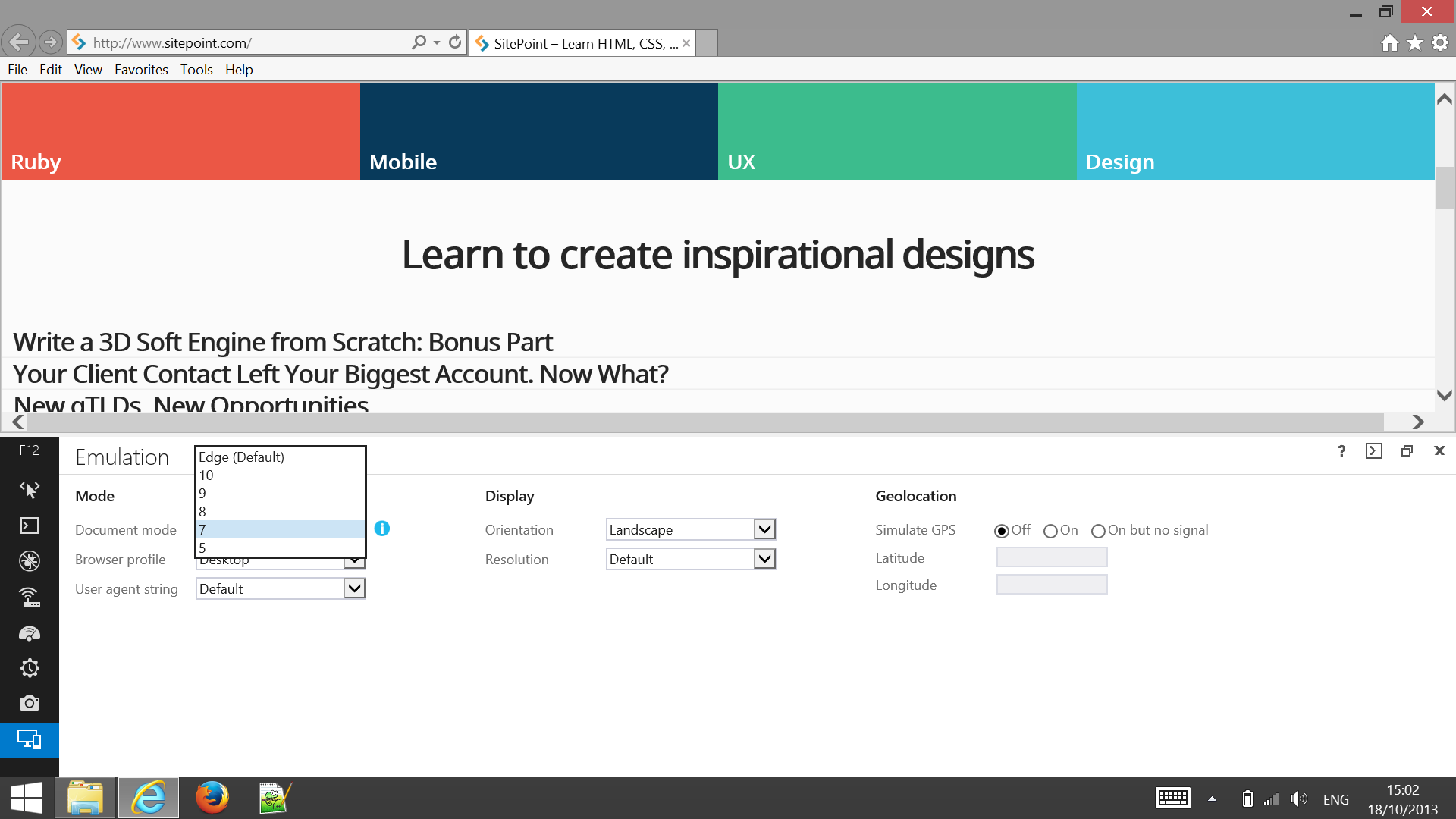
Anyway, they’re back. Microsoft has listened to the complaints and re-implemented browser modes in IE11 on Windows 8.1 (technically, they were always lurking beneath the surface and just hidden). I’m not aware of any official announcement — I found them by accident when tinkering with IE11 final on Windows 8.1 for a SitePoint review.


IE11 browser modes


To access the modes, start the F12 Developer Tools, click the Emulation icon at the bottom, and choose a Document Mode — they’re not named “browser modes” any longer.
Has Microsoft made the right decision? Ironically, the lack of browser mode functionality would have dissuaded some companies from upgrading IE9/10. Fewer upgrades means longer having to support oldIEs. I suspect they’ve done the right thing.
That said, please don’t use browser modes! I know they’re convenient, but they could cause more problems than they’re worth when real IE8 users report issues with your site or application.

Are you pleased to see the return of IE browser modes?

Source: http://www.sitepoint.com/ie11-browser-modes-return/

July 16, 2014

Lifehacker Pack for Windows: Our List of the Essential Windows Apps


Lifehacker Pack for Windows: Our List of the Essential Windows Apps


Windows has more great programs than we can count, but some are essential to just about every PC setup. In this year's annual Lifehacker Pack for Windows, we're highlighting the must-have downloads for better productivity, communication, media management, and more.
The Lifehacker Pack is a yearly snapshot of our favorite, essential applications for each of our favorite platforms. For our always-updating directory of all the best apps, be sure to bookmark our Windows App Directory.


The Ninite Pack

As always, we have the good folks at Ninite helping us out this year, creating a one-click installer for the Windows Lifehacker Pack. You can download the entire pack together, or just pick the apps you want, and Ninite will install them all at once, no bloatware or toolbars included—perfect for new Windows installations or setting up your friends with a good set of apps.
And, just like every year, we have two packs for Windows: an Essentials pack that everyone should have, and an Extended pack, which includes some tools that more hardcore users will probably need around. This year we've added a new app or two, removed some to keep the ever-growing pack lean, and moved a few downloads to the Extended Pack where they belong. (And, of course, this is just a starting point—there are tons of great Windows apps out there, even if they aren't essentials.)


Note: unfortunately, the Ninite pack is missing a couple apps from the list—most notably CCleaner (because they don't want their software in Ninite), Bins, and Fences (both of which are paid apps). So don't forget to grab those ones manually after you've installed the rest of the pack with Ninite!
So, without further ado, here is the 2014 Lifehacker pack for Windows!


Productivity


Lifehacker Pack for Windows: Our List of the Essential Windows Apps

Launchy

On the surface, Launchy is an utility that helps you launch programs super fast—but it's really much, much more than that. Not only can you launch your favorite programs with just a few keystrokes, but you can also open documents and folders, perform calculations, kill processes, search the web, and perform any number of advanced tasks (like start an SSH session). It isn't the only application launcher on Windows, but it is our favorite.


Lifehacker Pack for Windows: Our List of the Essential Windows Apps

ResophNotes and Evernote

Everyone needs a place to store little notes and clippings, but not everyone needs the same thing. So, for our note-taking portion of the pack, we give you two options: ResophNotes and Evernote. ResophNotes is about as simple as they come, syncing plain text notes through Simplenote or Dropbox and letting you get back to work. Evernote, on the other hand, is more of a filing cabinet for notes, web clippings, and just about anything else you could possibly need. It may seem like overkill, but once you actually figure out how to use it, it can be indispensable for work and play.


ResophNoes icon by Jayvant.
Lifehacker Pack for Windows: Our List of the Essential Windows Apps

PhraseExpress

Text expansion is one of the greatest improvements you can make to your productivity. Think of any tedious typing you do during the day—addresses, canned email responses, bits of code, or anything else—and imagine being able to type it all with just a few keystrokes. That's what text expansion does, and it can save you hours of typing. PhraseExpress is the best free option on Windows, and while it has its problems, its our go-to for folks new to text expansion. Once you've gotten the hang of it though, Breevy might be a worthy upgrade.


Lifehacker Pack for Windows: Our List of the Essential Windows Apps

Wunderlist

More to-do apps exist than we could even count, and which one you choose depends a lot on how you work best. If we had to pick a favorite, though, it'd be Wunderlist. It's free, syncs to the cloud, and exists on just about any device you could want or have. Just start it up and start making your lists. It's incredibly simple to use, which is exactly what you want from a to-do list: make it easy to add and move tasks, so you can get back to actually doing them.


Lifehacker Pack for Windows: Our List of the Essential Windows Apps

LibreOffice and Microsoft Office

When Google Docs just isn't enough for your word processing needs, you need LibreOffice, the feature-packed, cross-platform, 100% free office suite. When LibreOffice's word processor, spreadsheet tool, and presentation creator don't cut it, Microsoft Office will undoubtedly fit the bill (albeit at a price). If you aren't sure which one you need, check out our comparison between the two. And if you just need to view Office documents, you can check out the Microsoft Office Viewers instead.


Lifehacker Pack for Windows: Our List of the Essential Windows Apps

SumatraPDF

The first time you go to open a PDF on a new Windows machine, you may be greeted with that ever-familiar prompt to install Adobe Reader. Don't do it! Unless compatibility issues force you into using Adobe's reader, you'd be much happier with something fast, light, and simple, like the awesome (and free) SumatraPDF. If you need to edit PDFs, check out our favorite PDF editor, PDF-XChange.

Internet and Communication


Lifehacker Pack for Windows: Our List of the Essential Windows Apps

Chrome

The browser wars aren't as close as they used to be, and most power users have switched over to Chrome these days. We can see why, too: it's fast, smooth, syncs all your settings, and has an incredible extension library. It may not be quite as customizable as Firefox, but for the majority of people—even us power users—it's more than enough.


Lifehacker Pack for Windows: Our List of the Essential Windows Apps

Pidgin

Whether you live and die by instant messaging or just need it for the occasional contact, having a desktop client is much easier than using the web. With an app like Pidgin, you can sign into multiple accounts at once (like Google Talk, AIM, and Facebook Chat), carry on multiple conversations in one window, and do all sorts of other stuff with Pidgin's fantastic plugins.


Lifehacker Pack for Windows: Our List of the Essential Windows Apps

Skype

Skype may not be our favorite video chat program, but it's definitely the most popular. Chances are, you have at least one or two friends and family members that will want to use Skype with you, so it's a good program to have in your pocket, even if you don't use it as part of your regular telephony. Just make sure to disable the auto-start feature so it isn't always running.


Music, Photos, and Video


Lifehacker Pack for Windows: Our List of the Essential Windows Apps

VLC

Windows Media Player can play the most basic file formats, but when it comes to playing DVDs, files you've downloaded from the web, and more, you'll need something that can do more. VLC plays every file format under the sun, and it does it well. It isn't our favorite video player—that honor goes to the amazing PotPlayer—but VLC is incredibly simple to download and use, so we're substituting PotPlayer for VLC in this Lifehacker pack. It's the app we'd recommend to just about anyone. If you want something more advanced, PotPlayer is a great alternative.


Lifehacker Pack for Windows: Our List of the Essential Windows Apps

Plex

We don't usually feature media center programs in our Lifehacker pack, since they're really designed for media center devices—plus, most of us are still split over whether we like XBMC or Plex better—but Plex has one other feature we absolutely love: it's the best program out there for streaming video to other devices, whether it's a home theater PC, a Roku, or your smartphone. Plex can stream across the room or across the country, whichever you need—so it's a great program to have on your PC.


Lifehacker Pack for Windows: Our List of the Essential Windows Apps

Picasa

Picasa may not be the ultimate professional photo editing and storing tool, but for us normal folks, it's a pretty fantastic app for keeping everything organized. It scans your photo folders and will automatically update your library if it detects anything new, ensuring it never misses anything. It's also got some great basic editing tools that are easy enough for even beginners to use, and it syncs with Google for cloud-based backup. Of course, if you aren't a fan of photo management apps, you could just skip Picasa and use Dropbox instead.


Lifehacker Pack for Windows: Our List of the Essential Windows Apps

Paint.NET

Unless you're a professional designer, you probably don't need something as advanced and complicated as Photoshop to edit the occasional images. For the rest of us, there's Paint.NET: a basic, free, easy-to-use image editor that fills the basic needs you'll encounter on a regular basis. If you want something a bit more advanced (but still free), check out GIMP.
Lifehacker Pack for Windows: Our List of the Essential Windows Apps

MusicBee

Picking a music player is one of the more personal choices you can make when it comes to apps, so we recommend trying a few things and seeing what fits you. If you aren't sure what you want, we'd recommend MusicBee as a good place to start (replacing our former choice, Winamp). It's customizable, lightweight, and easy to use—a hard combination to find. It has tons of options to tweak the interface, install extra plugins, and otherwise get everything working just so. If MusicBee isn't your cup of tea, check out the extended pack below for a few more options.


Lifehacker Pack for Windows: Our List of the Essential Windows Apps

Spotify

MusicBee might be our pick for music player, but we still recommend having a streaming music player on hand—even if it isn't your main player. Spotify is a great app to keep around. It helps you discover new artists, try them before you buy, listen to different streaming radio stations, and create awesome collaborative playlists—among many other hidden features. Plus, it's got some pretty cool plugins that make discovering music even easier. Sure, it's go a few annoyances—like interrupting ads and heavy ties to Facebook—but both of those are fixable.


Utilities


Lifehacker Pack for Windows: Our List of the Essential Windows Apps

Dropbox

These days, lots of us have more than just one device. Maybe it's a work computer and a home computer, or maybe it's three computers, a smartphone, a tablet, and a time machine that runs Linux. Whatever your span of devices, Dropbox is absolutely essential for keeping all your files (and other stuff) in sync. You get 2 GB of free space to start, but it's really easy to load up on extra space for free.


Lifehacker Pack for Windows: Our List of the Essential Windows Apps

uTorrent

When you have to download a large file, BitTorrent is almost always a better alternative than a slow direct download. When it comes to Windows, uTorrent is still our tried-and-true BitTorrent app of choice. It's full of useful features, but keeps itself lightweight and easy to use, a balance few programs can truly say they've struck. It's got a few ads, but they're easy to disable. Once you've got it set up, make sure it's optimized for speed and privacy.


Lifehacker Pack for Windows: Our List of the Essential Windows Apps

CrashPlan

Everyone needs a backup. There's no worse feeling than having your hard drive crash and having to start from scratch. Enter CrashPlan. While you could always back up to an external drive, that won't save you if you lose your computer in a fire, burglary, or other disaster. CrashPlan backs your computer up to the cloud, using either CrashPlan's cloud service or a friend's computer, keeping your data safe no matter what. Plus, it's really easy to set up. Set it, forget it, and relax.


Lifehacker Pack for Windows: Our List of the Essential Windows Apps

CCleaner

Every computer needs a bit of maintenance now and then to keep it running snappy, and CCleaner is our favorite tool to get all those tasks done. CCleaner cleans temporary files and cookies from your browser, temporary files and documents from Windows, cleans up junk from your other installed programs, and will even securely wipe your hard drive if need be. Set it to run on a schedule for truly automated cleaning.


Lifehacker Pack for Windows: Our List of the Essential Windows Apps

Revo Uninstaller

When you uninstall a program with Windows' built-in tool, sometimes it leaves behind extra files or registry entries that it can't find. Revo fixes that problem: not only does it uninstall every trace of the program in question, but you can also uninstall program via its "Hunter Mode" just by clicking on the program you want to get rid of. It's a must-have for any Windows user, especially those that like to try a lot of software.


Lifehacker Pack for Windows: Our List of the Essential Windows Apps

7-Zip

Windows can create ZIP archives for you right out of the box, but when you stumble on a less familiar file format—like the much more efficient RAR or 7Z—you'll need an archive tool. 7-Zip is the tool you want, allowing you to not only create and open archives of other formats, but also encrypt them for safe keeping, all right from Windows' context menu. Chances are you'll need this one day, so you might as well install it now. It's perfect for compressing a bunch of files or sending sensitive information online.


Lifehacker Pack for Windows: Our List of the Essential Windows Apps

Avast! Free Antivirus

No matter how careful you are, every computer should have a good antivirus program installed. If you pick the right one, it'll be lightweight enough that you never notice it, but strong enough to pick up any infection that comes your way. For us, that balance is almost perfectly struck with Avast. It's free, light, and fantastic at catching infections. It's replaced Microsoft Security Essentials as our favorite antivirus because MSE's virus detection skills have gone downhill. We were nervous about trying something else, but Avast is everything we could have hoped for—just make sure you disable its annoying sounds and popups.


The Extended Pack


So you've got the basic essentials that every computer should have, but there are other programs we've found ourselves installing time and time again whenever we boot up a new Windows installation. That's what the extended pack is for: they aren't essentials, but they're very useful apps that deserve to be part of your toolkit.
Lifehacker Pack for Windows: Our List of the Essential Windows Apps

.NET, Silverlight, and Java

.NET, Silverlight, and Java are three frameworks that you might not always need right away, but you may somewhere down the line. If you know you're going to need them in the future (like if you're a Netflix user, which requires Silverlight), go ahead and download them right now. If you aren't sure, it won't hurt to hold off. Just make sure to disable Java in your browser for.


Lifehacker Pack for Windows: Our List of the Essential Windows Apps

Thunderbird

Most of you probably don't use desktop email clients anymore, so we've removed this from the regular pack and put it down here with the extended pack. They may not be popular anymore, but desktop clients are still very useful—they'll handle multiple accounts like a champ, give you offline access, provide a backup for when Gmail goes down, and a lot more. Thunderbird may have slowed development, but its great extension library and level of customizability make it a great choice of desktop client (not to mention its $0 price tag). If you're looking for something a bit more advanced, we love Postbox (which is based off Thunderbird) as a paid alternative.


Lifehacker Pack for Windows: Our List of the Essential Windows Apps

Handbrake

Handbrake isn't a must-have for everyone, but it's very useful for anyone ripping, encoding, or otherwise working with videos. Not only is it the perfect program for ripping a DVD to your computer, it can also convert big Blu-Ray rips, encode videos for your favorite phone or tablet, and more. Best of all, it's 100% free and open source.


Lifehacker Pack for Windows: Our List of the Essential Windows Apps

Bins

Bins is a great little app that combines multiple icons into one stack in the Windows taskbar. It's perfect for grouping together your music players, creating a stack of your less oft-used programs, and otherwise cleaning up your messy taskbar. It's $5, and one of the Windows programs that's well worth paying for.


Lifehacker Pack for Windows: Our List of the Essential Windows Apps

Fences

If you have more than a few icons on your desktop that are in a constant state of clutter, Fences is for you. Fences divides your desktop up into a few little groups, letting you place icons in each one individually—by category, file type, or however else you want. You can even create fences based on folders on your PC, and swipe between multiple pages of icons. It's everything you need to create a clean, organized desktop and keep it that way. Fences is $9.99, but you can get a free trial before you buy (or grab the old, free version of Fences here).


Lifehacker Pack for Windows: Our List of the Essential Windows Apps

iTunes, MediaMonkey, and foobar2000

If MusicBee isn't for you, it's a good thing you have so many other choices. We've put a few other music players in the Extended Pack that should fit almost any needs. iTunes, while far from perfect, is ideal if you have any iOS devices to sync. MediaMonkey has a ton of advanced tagging, organizing, and syncing features, and can even sync to iOS with a bit of work. Foobar2000 is more customizable than anything else out there, and while it's a bit advanced, it can really become anything you want it to be. Try one of these and you're sure to be satisfied.


Lifehacker Pack for Windows: Our List of the Essential Windows Apps

Notepad++

Whether you're a hardcore programmer, occasional web developer, or just a mild tweaker, Notepad++ is miles beyond Windows' built-in notepad for editing code. It's lightweight, stores open documents in tabs, highlights syntax, and has a ton of plugins for customizing your experience. Even if you only edit the occasional INI file, Notepad++ will make you happy.


Lifehacker Pack for Windows: Our List of the Essential Windows Apps

AutoHotkey

What can be said about our favorite little Windows utility that hasn't already been said before? AutoHotkey basically turns any action you can imagine into a keyboard shortcut. It requires a little bit of code, but even the most basic users can grasp it in an afternoon—and you can do anything from simple shortcuts to build full-fledged programs with AutoHotkey. Use it to add your own shortcuts to Windows Explorer, create a customized boss key, put your computer to sleep, and lots, lots more. If you haven't tried AutoHotkey yet, now is the time—you'll wonder how you ever lived without it.


Title image by Perfect Vectors (Shutterstock) and Litz (Shutterstock).


There's some good stuff in this article, but some of the tools are not worth their usage if you're on a lower end machine, so weakling netbooks be warned... AutoHotKey is amazing if you have the right scripts. It can make so many programs obsolete. I use AHK for launching my programs, advanced window managing, enabling transparency, live monitor windows, managing my clipboard, popping out flash videos of sites, extending my mouse's functionality, and so much more- all without eating up memory. It's simply, hands down, my favorite tool- period. I love Teracopy, Revo, and Dropbox too. And as long as you have something like Classic Start Menu/Classic Shell, you don't need any special launcher program. You can use it to modify the Start Menu to do everything you need.

If I can add...

I'd take Irfanview with plugins any day of the week over Picasa simply for gif support and just the general customization/lightness of the program. There's also lack of system monitoring tools here, so I'd like to suggest DesktopInfo. Also, if you have premium Last.fm, Spotify, or Grooveshark account, Clementine is the only media player you need for streaming your music PLUS playing your local tracks. It's so feature rich and slick, it's just awesome. If you're a non-premium user though, Foobar2000 can't fail you, especially if you like customization. And if you just want a simple media player that runs as silently and smoothly as possible, Boom.

Agree that Irfanview should have been included, but should not replace Picasa as I think the two apps serve a different purpose.
Maybe this Irfanview/Flickr uploader combination would be more of a Picasa replacement. http://www.flickr.com/groups/flickrh...

Source: http://lifehacker.com/lifehacker-pack-for-windows-our-list-of-the-best-windo-787533613?utm_source=feedburner&utm_medium=feed&utm_campaign=Feed%3A+lifehacker%2Ffull+%28Lifehacker%29